
QR Labels
A small label on a device lets IT find out at a glance what it is, whose it is and whether it is under warranty, without looking it up in the portal. Labels work for Intune devices and for extra devices.
Printing labels
- One device: open the device and click Print QR label.
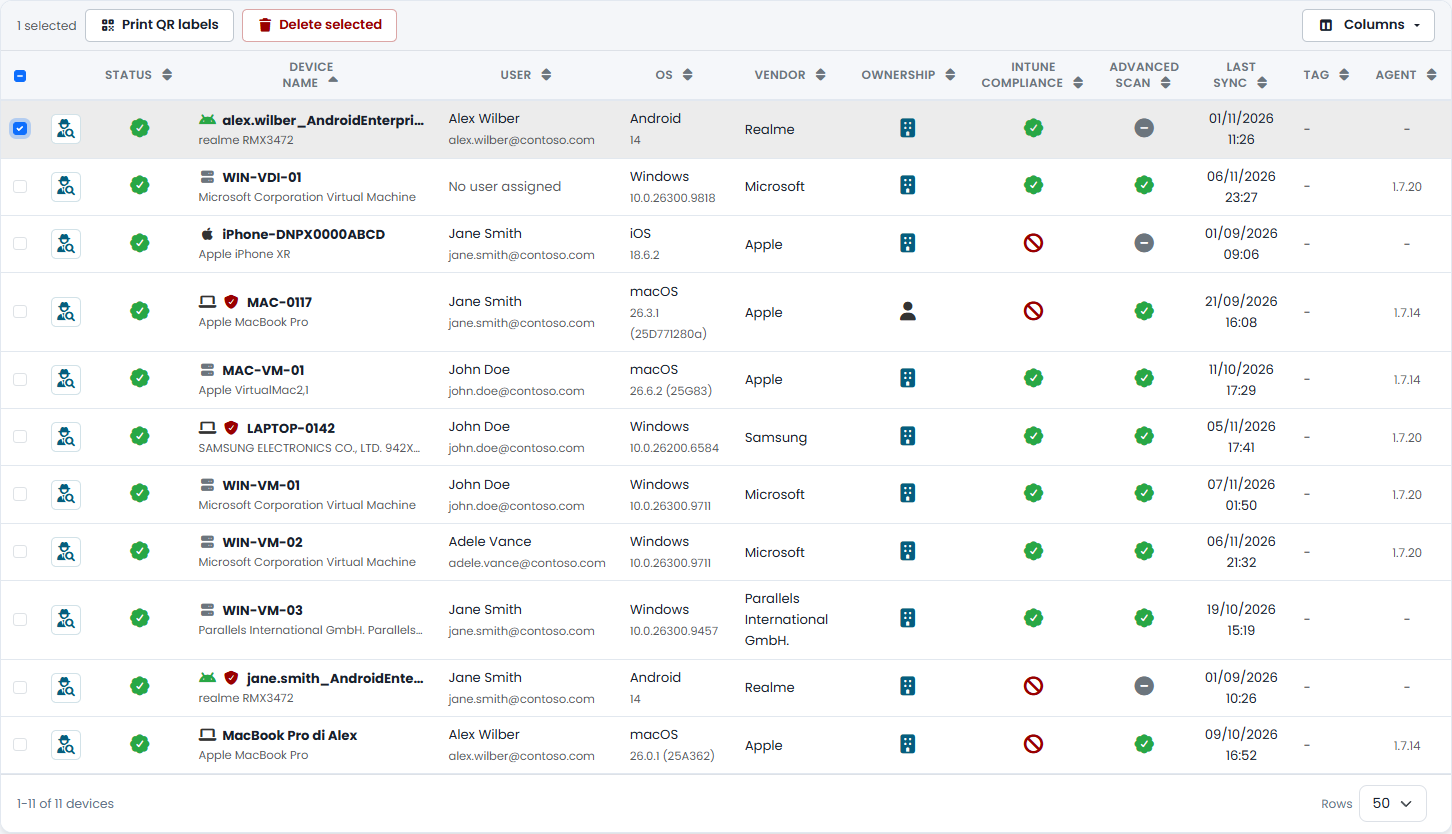
- More devices: in the Device List, on the Devices or Extra Devices tab, select the devices with the check boxes and click Print QR labels. You can print up to 100 labels at a time.
The portal creates a PDF with one 25 × 25 mm label per page, with the QR code, the device name and the serial number. It suits label printers such as DYMO.
Printing a device again produces the same code, so a label that wears out can be replaced.
Reading a label
Scan the code with a phone. It opens a page of the portal in the browser, with the sign-in to Microsoft Entra.
The browser must be able to sign in with the user's account. If the policies of your tenant require a device registered in Microsoft Entra, the phone must be registered too.
The page shows Basic Information, User Data, Operating System and Warranty. An extra device shows its basic information, the assigned user and the warranty.
The page opens only for a user who:
- belongs to the tenant of the device;
- has the QR code reading permission;
- can see that device under Device Visibility (RBAC).
There are no exceptions: MSP users and a master tenant looking at a sub-tenant get the same "not available" page as anybody else. Every opening and every refusal is recorded in the audit log.
Revoking a label
If a label is lost, open the device and click Revoke label. The printed label stops working at once, and the next print creates a different code.
Permissions
| Permission | Allows |
|---|---|
| QR code reading | Open the page behind a label. |
| QR label printing | Print and revoke labels of your own tenant. |