
Portal Reference
Signing in
Open the portal and click Sign in: you use your Microsoft Entra work account, the same as for Microsoft 365. There is no separate password.
- If your organization is new to Device Inventory Manager, Inside Technologies activates it after registration; until then you see a page that says the tenant is pending activation.
- The first person of your organization becomes the tenant administrator.
- The others are created as inactive the first time they sign in, and wait for an administrator to activate them. See Users & Permissions.
The layout
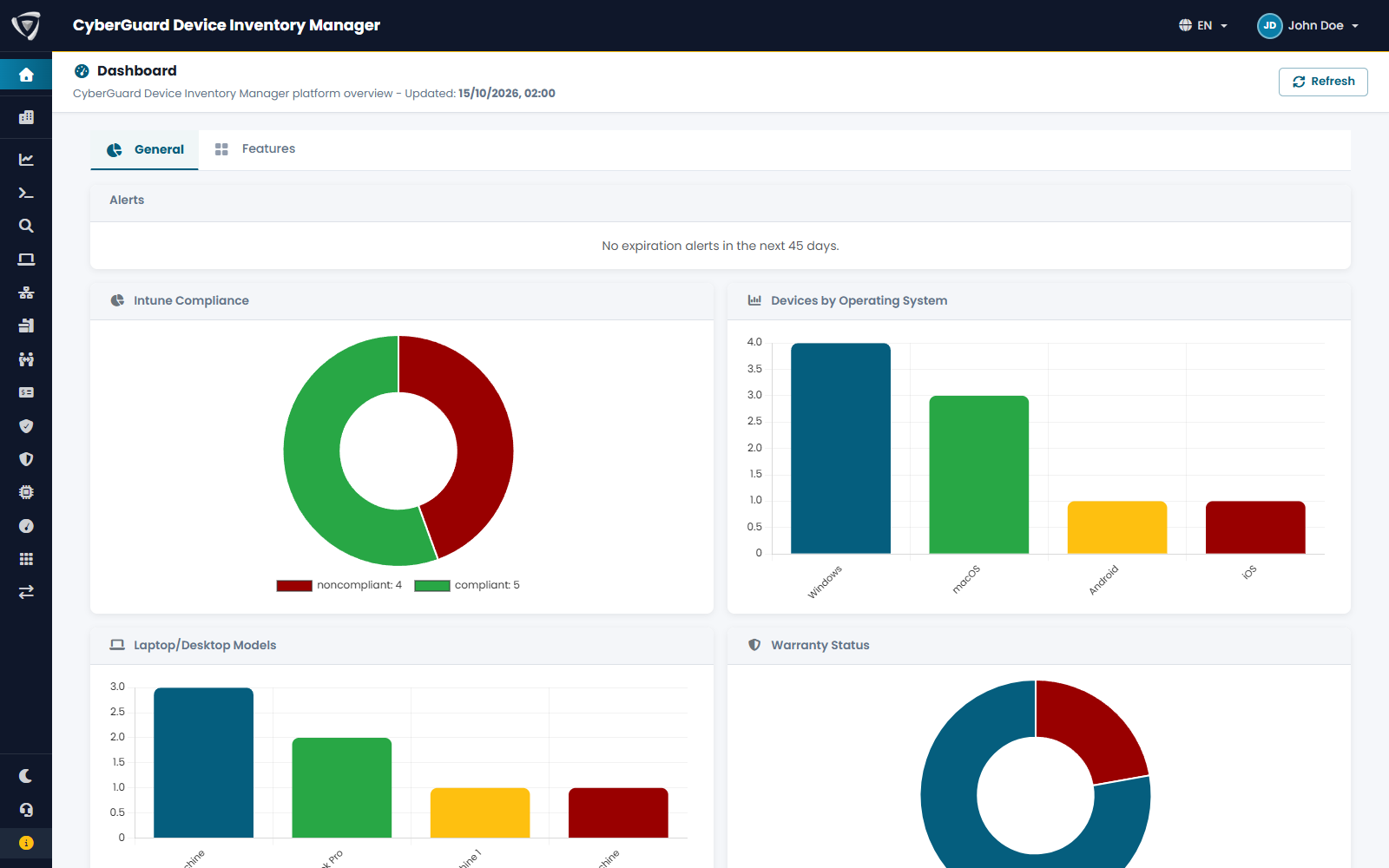
Sidebar, on the left:
- Dashboard, the home page;
- My Tenant, the settings of your organization, for administrators (see My Tenant);
- the areas you chose to keep at hand (see Favorites);
- at the bottom, Dark theme / Light theme, Support and About.
Top bar, on the right:
- the language menu (EN / IT);
- your name, with Logout;
- for managed service providers, the selector of the managed clients.
Opening an area
All areas open from the Features tab of the Dashboard: Devices, Compliance, Updates, Drivers, Applications, Software Metering, Inventory, Assignments, Rentals / Assets, Networking, Statistics, Query Explorer, Discovery, Import / Export. You see only the areas your permissions allow.
Favorites
In the Features tab, click the eye icon of an area to show it in the sidebar or hide it, then Update sidebar. Each user chooses their own.
Language and dates
Choose the language from the top bar. Dates and times are shown in the time zone of your organization, set in My Tenant, whatever the time zone of your computer.
Support
Support opens the Support Center, where you send a request to Inside Technologies:
- Choose the Request Type: Support Request, Feature Suggestion, Bug Report, Information Request.
- Write a Subject and a Message with as many details as possible.
- Optionally attach one file (zip, jpg, png or pdf, up to 10 MB), for example a screenshot.
- Click Submit Request.
About shows the version of the portal and links to this guide and to the release notes.