
HR Requests
HR uses HR Request to tell IT that people are joining or leaving, with all the details IT needs, instead of sending scattered emails.
Opening a request
- Open Staff Management › HR Request and click New Request.
- Choose the Request type:
- Onboarding: new employees. Only first and last name are required.
- Offboarding: employees leaving. All fields are required, including the end date.
- Other: any other request. Write it in the notes.
- Add General Notes for IT if needed.
- In Collaborators List, add a row for each person with first name, last name, department, job title, location, device type, phone, and the start date (onboarding) or end date and garden leave date (offboarding). Click Add for more rows.
- Click Submit Request.
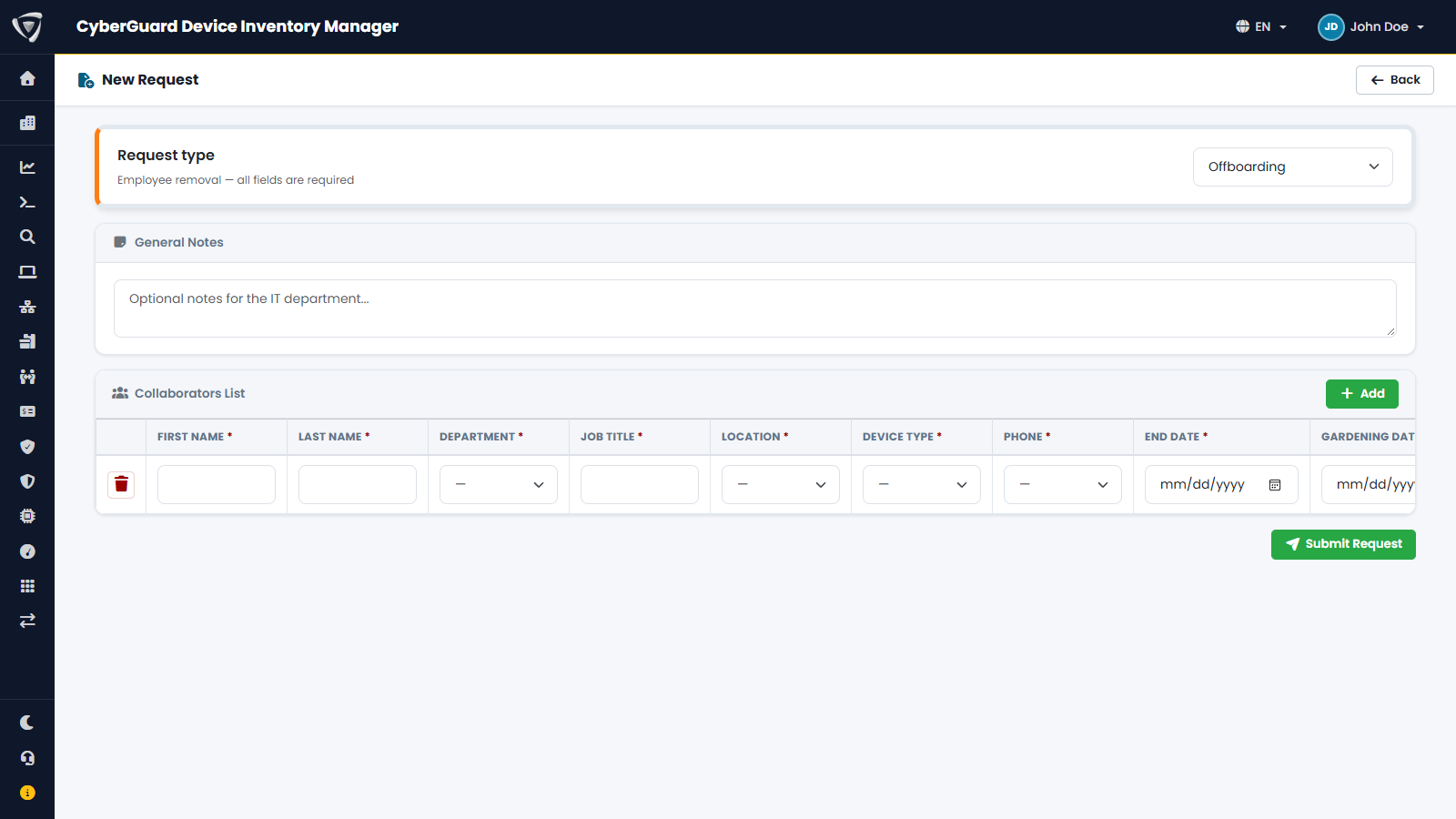
Departments, locations and device types are the lists defined in Settings.
IT receives an email at the address set in Settings with the request.
Following a request
The Onboarding / Offboarding Requests page lists all requests with requester, number of people, status, type and dates. Filter by requester, status (Open, Completed, Cancelled) and type.
Open a request to see the details. IT clicks Mark as Completed when everything is done: the requester receives an email. A request can also be cancelled or deleted.
Permissions
| Permission | Allows |
|---|---|
| Device Assignment Request | Open requests and see your own. |
| Manage Assignment Requests | See all requests, complete, cancel and delete them. Usually for IT. |