
Extra Devices
Not every device is managed by Microsoft Intune. Printers, switches, firewalls, access points, monitors, docking stations, projectors, phones given to employees without enrollment, laptops of a branch that is not yet in Intune: all of them are still company equipment, with a warranty, a contract and a user. Extra devices bring them into the same inventory.
An extra device has the same fields as an Intune device: warranty, rental, asset, purchase order, site, tag, status, condition, notes, attachments. It does not have the data that comes from Intune or from the agent.
Extra devices do not count towards the device limit of your subscription.
Adding an extra device
- Open Devices › Extra Devices and click Add.
- Fill in Basic Information: Device Name, Type, Vendor, Serial Number, Product Number (P/N), Model.
- Fill in the other fields you need. They are the same as for Intune devices: see Editing Device Fields.
- Click Save.
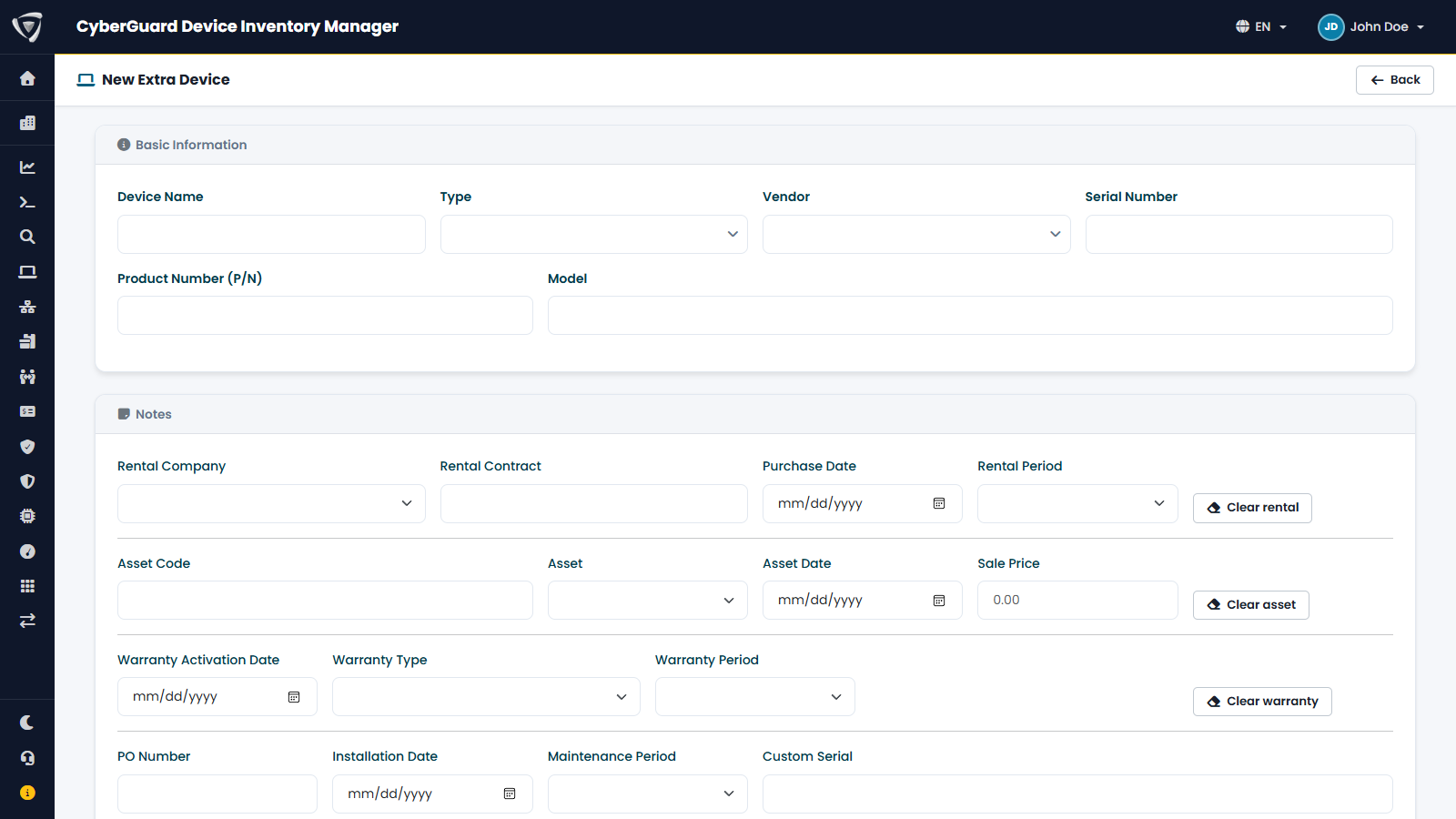
Enter the Serial Number whenever you can: it is how Device Inventory Manager recognizes the device if it later appears in Microsoft Intune (see below), and how Warranty Retrieval finds its warranty.
To add many devices at once, prepare a CSV file and use Import › Extra Devices (see Import). Network devices discovered by the network probe can be saved as extra devices directly from the network device list.
The extra device page
The page has three tabs:
| Tab | Content |
|---|---|
| Device | All the fields, and the Assigned User card. |
| Inventory | Inventory assets linked to the device. |
| Attachments | Documents of the device. See Attachments. |
Assigning a user
Since there is no Intune to tell who uses an extra device, you assign the user yourself:
- In the Assigned User card, type a name or email in Search user in Microsoft Entra and click Search.
- Choose the user from the results.
The user is saved immediately. Click History to see who had the device before. Users are also assigned automatically when you deliver devices with Employee Onboarding.
When an extra device appears in Microsoft Intune
If you enroll in Microsoft Intune a device that you had added as an extra device, for example a laptop of a branch that moves to Intune, you do not have to do anything. At the next synchronization, Device Inventory Manager finds the Intune device with the same serial number and merges the extra device into it: warranty, rental, asset data, notes, user history, attachments and Inventory assets move to the Intune device, and the extra device disappears from the list.
The merge is recorded in the Audit Log with all the data the extra device contained.