
When a Device Leaves Intune
A device leaves Microsoft Intune more often than you might think: an employee leaves the company and the laptop is wiped and stored, a PC breaks and is replaced, a phone is returned to the leasing company, a device is retired from Intune by a cleanup rule.
In Device Inventory Manager the device does not disappear: Intune devices are never deleted by the synchronization. It stays in the list, with a Last Sync date that no longer moves forward. Its warranty, rental, asset data, attachments and history are still there.
What you should not do is delete it: you would lose all that history, which you may need for an audit, a dispute with the leasing company, the asset register or simply to know who had the device and when.
Migrate the device to an extra device
The right way to keep a device that is no longer in Intune is to turn it into an extra device:
- Open the device page.
- Click Migrate Device in the header.
- Confirm with Migrate Device.
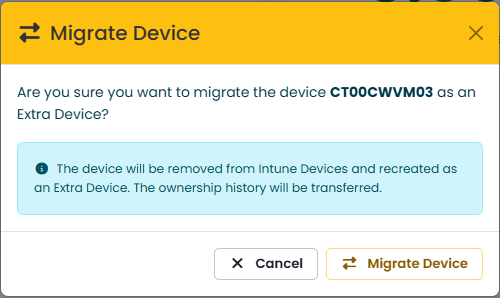
The device is removed from the Intune device list and recreated as an extra device, with:
- name, serial number, manufacturer and model;
- rental, warranty and asset data, purchase order, installation date, maintenance period, custom serial;
- site, tag, status, condition and notes;
- the last user and the full ownership history;
- attachments, Inventory assets linked to the device and the onboarding and offboarding records of Staff Management.
The type becomes Smartphone for iOS and Android devices and Notebook for the others; you can change it afterwards. The migration is recorded in the Audit Log.
What is not kept is the data that only makes sense while the device is managed: Intune compliance, installed applications, updates, drivers, performance and the agent data.
Then update the extra device to reflect reality, for example:
- Status: Parked if it is waiting to be reassigned, Decommissioned if it has been taken out of service, Sold if it has been sold or redeemed at the end of a rental;
- Condition, and a note on what happened.
Who can migrate
Migration requires the Full Control access level or the Tenant Admin role (see Users & Permissions). It is not available to managed service providers, who have read-only access.
Finding devices that have left Intune
In the Device List, sort by Last Sync: devices that have not synchronized for weeks are the candidates. Check in Microsoft Intune whether they are still enrolled before migrating them.
If the device comes back
If the device is enrolled in Microsoft Intune again, for example when a parked laptop is given to a new employee, you do not have to do anything: at the next synchronization the extra device is merged back into the Intune device, with all its data. See When an extra device appears in Microsoft Intune.
A device limit in your subscription
If your subscription includes a maximum number of devices, devices that have left Intune still count towards it as long as they are in the Intune list. Migrating them to extra devices frees space for new devices. When the limit is reached, Device Inventory Manager never deletes anything: new devices from Intune are not imported and administrators receive an email.