
Device List
Open Devices from the Dashboard or the sidebar. The General tab lists the devices synchronized from Microsoft Intune.
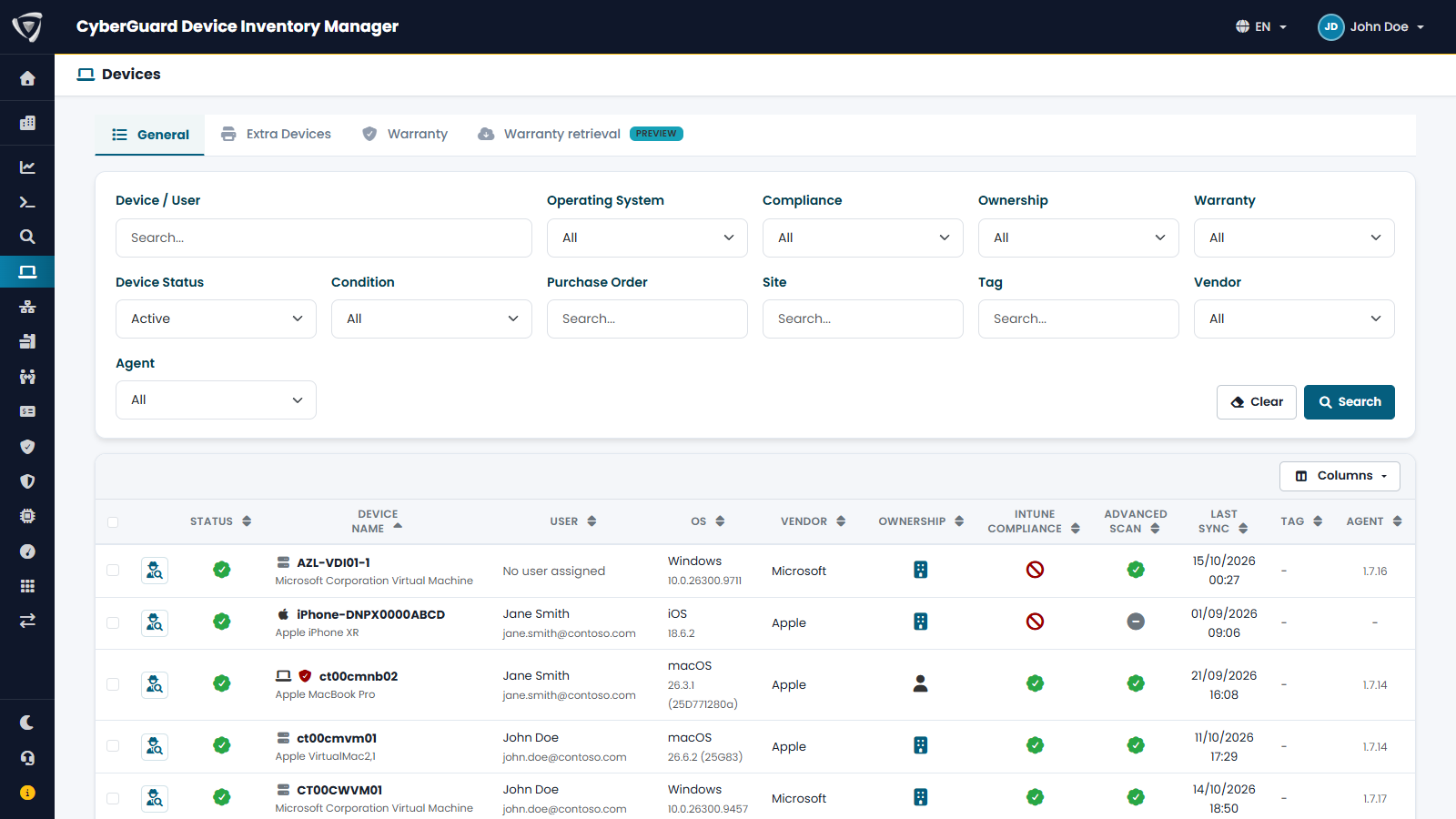
The page has four tabs:
| Tab | Content |
|---|---|
| General | Devices managed by Microsoft Intune. |
| Extra Devices | Devices you added yourself. See Extra Devices. |
| Warranty | Warranty status of the fleet and upcoming expiries. See Warranty. |
| Warranty retrieval | Retrieve warranties from the manufacturer. See Warranty Retrieval. |
Filters
| Filter | Shows |
|---|---|
| Device / User | Devices whose name, serial number, user name or email, or purchase order contains the text. |
| Operating System | Windows, macOS, iOS or Android. |
| Compliance | Compliant, Non-compliant, In Grace Period, or N/A according to Microsoft Intune. |
| Ownership | Corporate or Personal devices. |
| Warranty | With warranty, Warranty expired, No warranty. |
| Device Status | The lifecycle status (see below). Active is selected by default. |
| Condition | Excellent, Good, Worn Out, Damaged. |
| Purchase Order, Site, Tag | Devices with that value in the field. |
| Vendor | The manufacturer. |
| Agent | The version of the CyberGuard agent, or devices without the agent. |
| Company | With Multi-Tenant, the company the device belongs to. |
Set the filters and click Search; Clear resets them.
Columns
| Column | Meaning |
|---|---|
| Status | Lifecycle status of the device. |
| Device Name | Name and model. The icon before the name shows the type (physical device, virtual machine, Cloud PC, phone); a shield shows the warranty status, with the expiry date in the tooltip. |
| User | Primary user from Microsoft Intune. |
| OS | Operating system and version. |
| Vendor | Manufacturer. |
| Ownership | Corporate (building) or Personal (person). |
| Intune Compliance | Compliance state from Microsoft Intune. |
| Advanced Scan | Whether the CyberGuard agent has sent detailed data for this device. |
| Last Sync | Last time the device checked in with Microsoft Intune. |
| Site, Tag | Values you assigned. |
| Agent | Version of the CyberGuard agent installed on the device. |
Use Columns to show or hide columns, and click a column header to sort. Click the icon at the beginning of a row, or the device name, to open the device page.
Lifecycle status
Every device has a status that tells where it is in its life:
| Status | Use it for |
|---|---|
| Active | Devices in use. |
| Parked | Devices returned and waiting to be reassigned, for example after an offboarding. |
| Disconnected | Devices no longer reachable or no longer in use, kept for reference. |
| Decommissioned | Devices taken out of service, for example scrapped. |
| Sold | Devices sold or redeemed at the end of a rental. |
You change the status on the device page (see Editing Device Fields). Since the list shows only Active devices by default, change the Device Status filter to find the others.
Deleting devices
Select devices with the check boxes and use the delete button, or open a device and click Delete. Deletion requires the Delete Devices permission.
Deleting removes the device with its notes, attachments and history. A device that is still in Microsoft Intune comes back at the next synchronization, but without that data. To keep the history of a device that has left Intune, migrate it instead: see When a Device Leaves Intune.