
Compliance
The Device Compliance page shows the security settings of every device in one table: boot mode, TPM, BitLocker, firewall, antivirus, BIOS. Use it to find the devices that need attention, and to prove to an auditor that the fleet is protected.
Open it from the Dashboard (Compliance) or the sidebar.
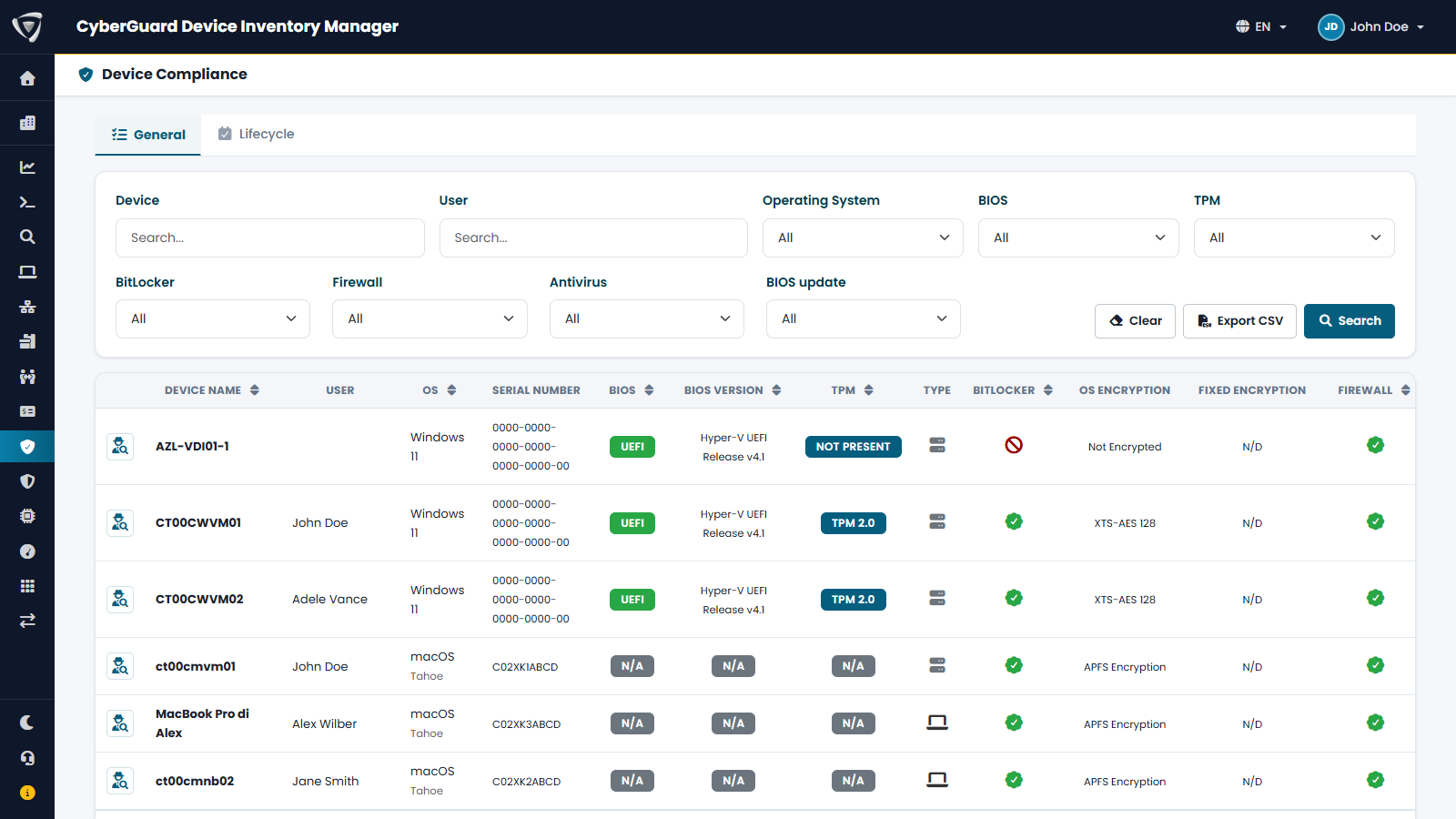
The General tab
Filters
| Filter | Shows |
|---|---|
| Device, User, Operating System | Devices matching the name, user or operating system. |
| BIOS | Boot mode: UEFI or legacy BIOS. |
| TPM | TPM version, or devices without TPM. |
| BitLocker, Firewall, Antivirus | Enabled or disabled. |
| BIOS update | Update available, Critical update, With known vulnerabilities (CVE), Up to date, Unknown, Not applicable. |
Columns include, for each device: user, operating system, boot mode, BIOS version and update status, TPM, device type, BitLocker, encryption method of the system drive and of the other drives, firewall, antivirus, antivirus signatures, real-time protection and manufacturer.
To download this data as a CSV file, use the Compliance export in Import & Export.
BIOS updates
For devices from the main manufacturers (Dell, HP, Lenovo, Microsoft Surface), Device Inventory Manager compares the installed BIOS with the manufacturer's catalog and tells you:
- whether a newer BIOS is available, and whether the manufacturer marks it as a critical update;
- whether the installed BIOS has known vulnerabilities, with a link to the manufacturer's security bulletin.
The same information is on the device page, in the Firmware card. Virtual machines and unsupported manufacturers show Not applicable.
The Lifecycle tab
Lifecycle lists the operating system versions in your fleet with their edition, release date, end of support, days remaining, status and number of devices. Use it to plan upgrades before a version goes out of support.
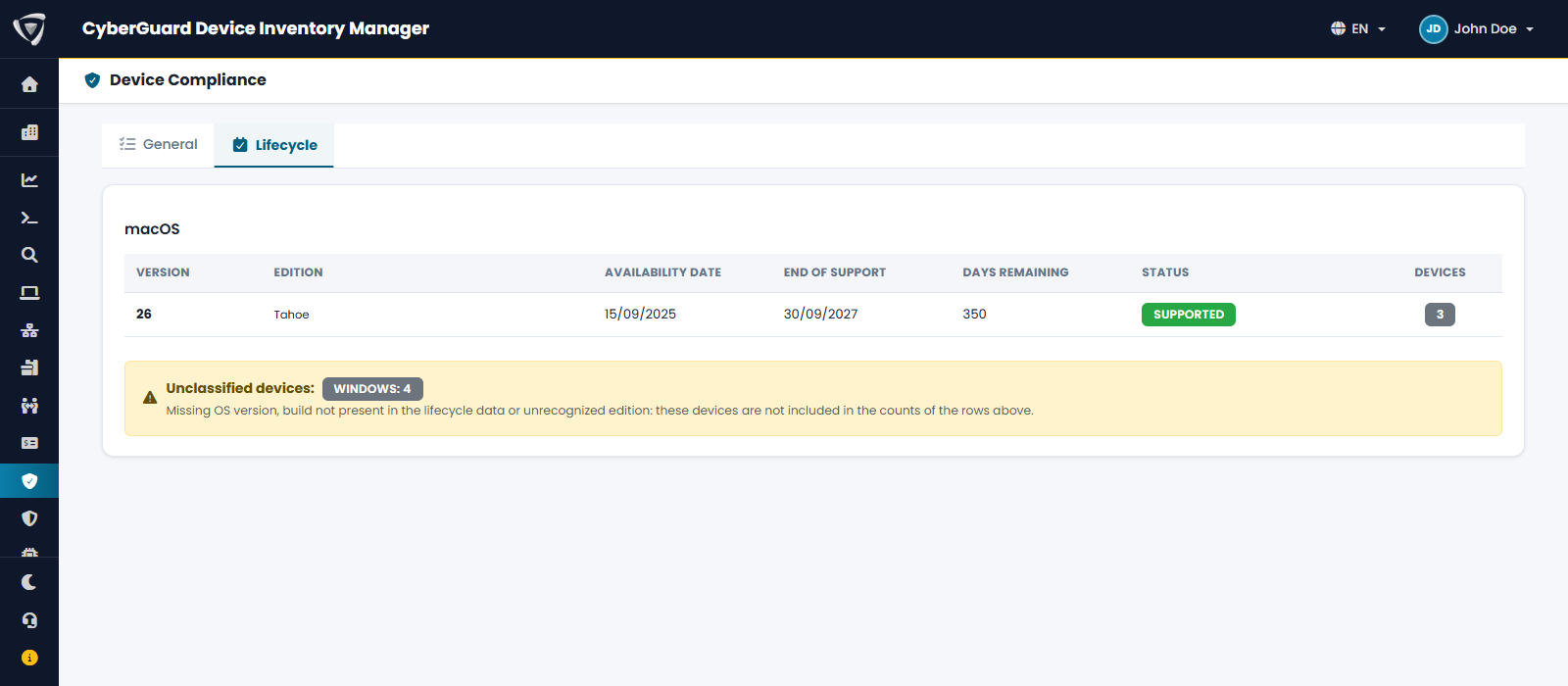
Devices whose version cannot be classified (for example preview builds or editions not in the catalog) are counted separately under Unclassified devices.
Why is a device not compliant?
The compliance state comes from the policies you set in Microsoft Intune. To see which policy and which setting make a device non-compliant, open the device and click Why not compliant? in the Compliance Status card (see Device Tab).