
Editing Device Fields
Microsoft Intune knows how a device is configured, but not when it was bought, who rents it, when its warranty ends or in which office it sits. You fill in these fields on the device page, in the Notes card at the bottom of the Device tab. The same fields exist on extra devices.
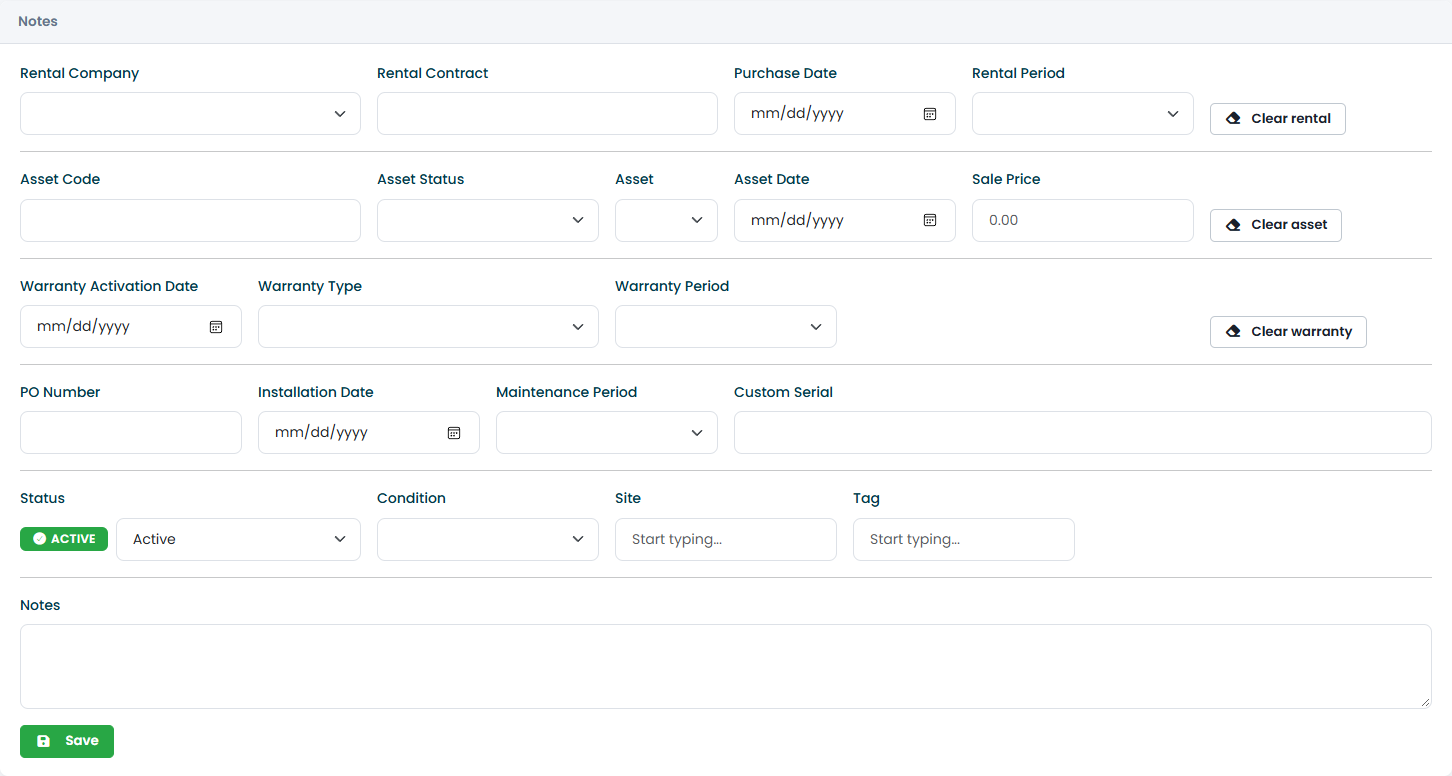
Change the fields you need and click Save. To fill in many devices at once, use the import.
Who can edit
Each group of fields has its own permission, so you can let the finance team edit rentals without letting them change anything else (see Users & Permissions):
| Fields | Permission |
|---|---|
| Rental | Edit Rental |
| Asset | Edit Asset |
| Warranty | Edit Warranty |
| Device information, status, condition, site, tag, notes | Edit Device Info |
Without the permission, the fields are shown but cannot be changed. Users with the Read Only access level cannot save.
Rental
For devices under an operational lease.
| Field | Meaning |
|---|---|
| Rental Company | The leasing company, from the list managed by Inside Technologies. |
| Rental Contract | Your contract number or reference. |
| Purchase Date | Start of the contract. |
| Rental Period | Length of the contract in months. |
The end of the contract is calculated from the purchase date and the period, and drives the rental expiries in Operational Lease. Clear rental empties all four fields.
Asset
For devices that are company assets.
| Field | Meaning |
|---|---|
| Asset Code | Your asset register code. |
| Asset Status | Not Started, In Progress, Completed: where the asset is in your registration process. |
| Asset | Yes or No. |
| Asset Date | Date of registration. |
| Sale Price | Price at which the device was sold, when it leaves the fleet. |
See Asset Management. Clear asset empties the fields.
Warranty
| Field | Meaning |
|---|---|
| Warranty Activation Date | Start of the warranty, usually the purchase or delivery date. |
| Warranty Type | The kind of coverage, for example Next Business Day Onsite. |
| Warranty Period | Length of the warranty in months. |
The expiry date is calculated from the activation date and the period, and drives the warranty status in the lists, the Warranty page and the expiry alerts.
When the warranty has been retrieved from the manufacturer (see Warranty Retrieval), these fields are locked and the coverage reported by the manufacturer is shown instead.
Clear warranty empties the fields.
Device information
| Field | Meaning |
|---|---|
| PO Number | Purchase order number. |
| Installation Date | When the device was delivered to the user. |
| Maintenance Period | Length of a maintenance contract, in months. |
| Custom Serial | A second identifier, for example your inventory label. |
| Status | The lifecycle status: Active, Disconnected, Decommissioned, Sold, Parked. See Lifecycle status. |
| Condition | Excellent, Good, Worn Out, Damaged. |
| Site | The office or location of the device. |
| Tag | A free label, for example a department or a project. |
| Notes | Any other information. |
Site and Tag suggest the values already used in your organization, so that everybody writes them the same way. Keep them consistent: they are used by the list filters and by Device Visibility (RBAC).
Attachments
The Attachments tab of the device page keeps the documents of the device: invoice, contract, delivery note, warranty certificate, photos, technical reports.
- Choose the File (up to 20 MB).
- Choose the Type.
- Optionally set an Alert Date: in the 45 days before that date, the attachment appears in the Alerts of the Dashboard. Use it for documents that expire, such as a maintenance contract.
- Add a Description and click Upload.
Attachments can be downloaded or deleted from the list below the form.