
Users & Permissions
People sign in to Device Inventory Manager with their Microsoft Entra work account. You do not create users in the portal: a user appears the first time they sign in, and an administrator decides what they can do.
Roles
| Role | What it can do |
|---|---|
| Tenant Admin | Everything included in your subscription, on all devices. Manages users, settings and the other tabs of My Tenant. |
| User | Only the areas and actions an administrator has turned on, on the devices they are allowed to see. |
The first person who signs in for your organization becomes a Tenant Admin automatically.
New users
When someone from your organization signs in for the first time:
- Their account is created as inactive. They see the page Account Pending Activation and cannot use the portal yet.
- An email New user awaiting approval is sent to the recipients chosen in Email Notifications, or to all tenant administrators if that tab is not available to you.
- An administrator activates the account (see below).
- The user receives an email confirming that the account is active, and can sign in.
Managing a user
Open My Tenant › Edit › Users. The list shows every user with their role, status and last sign-in.

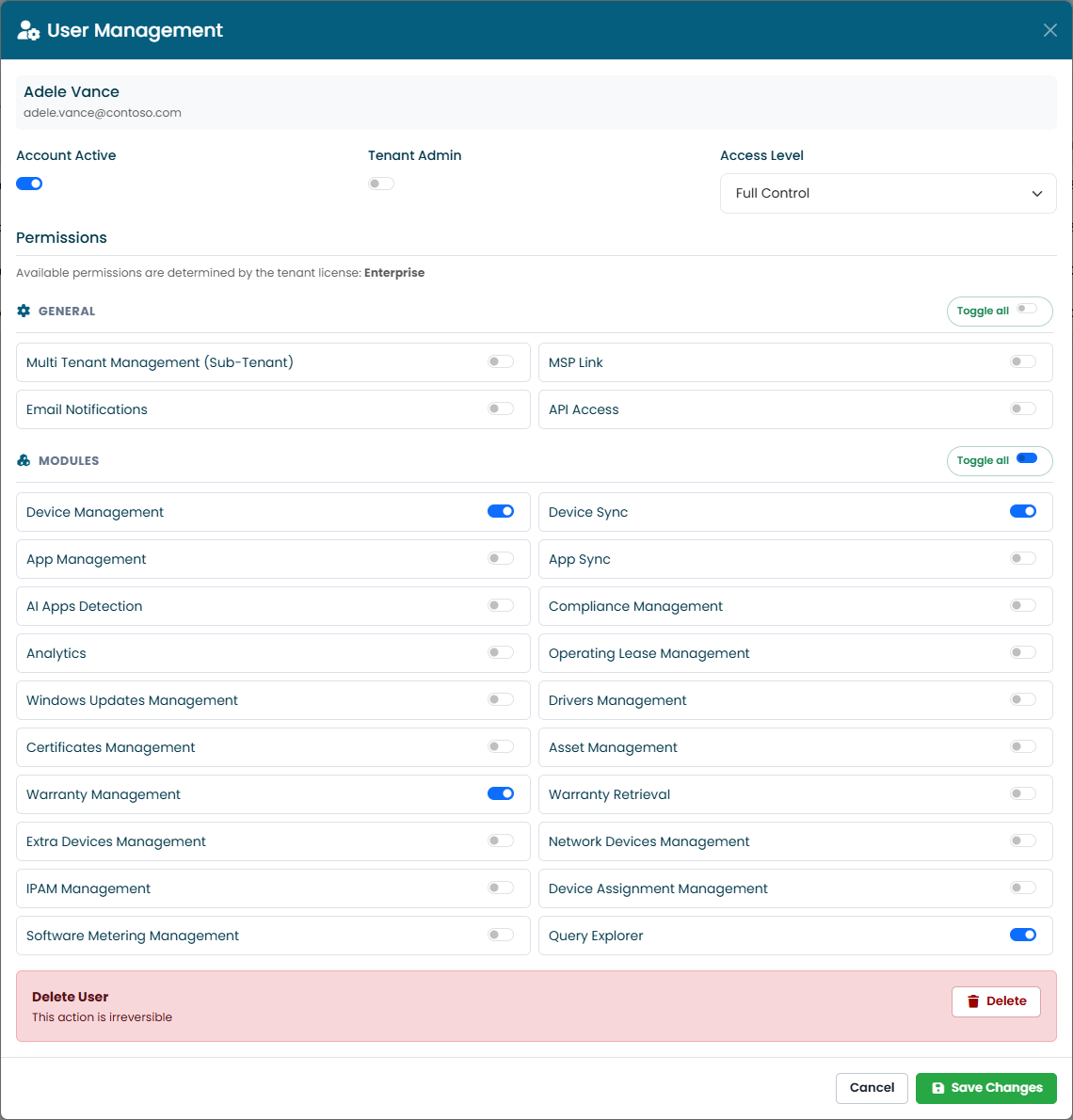
Click the icon at the beginning of a row to open User Management for that user.
| Setting | Effect |
|---|---|
| Account Active | Turn on to let the user in; turn off to block access without deleting the user. |
| Tenant Admin | Makes the user an administrator. Administrators automatically have every permission, so the permission list is not editable for them. |
| Access Level | Read Only: the user can look but not save. Edit (no deletion): the user can save changes but not delete. Full Control: all actions, including deletion. |
| Permissions | The areas of the portal the user can open and the actions they can perform, grouped as described below. Toggle all turns a whole group on or off. |
| Delete User | Removes the user. If they sign in again, they appear as a new inactive user. |
Click Save Changes to apply. You cannot change your own account: ask another administrator.
Only administrators can change the Tenant Admin role and the Access Level of other users, and delete users.
Permission groups
The list contains only the features included in your subscription.
| Group | What it controls |
|---|---|
| General | Sub-tenants (Multi-Tenant), MSP Access, Email Notifications, the synchronization commands for devices and applications, and whether the user can view BitLocker recovery keys and LAPS passwords. |
| Agents | Whether the user can download the Windows and macOS agent. |
| Features | Which areas of the portal the user can open: devices, applications, compliance, Windows updates, drivers, certificates, warranty, rentals, assets, extra devices, network devices, IPAM, staff management, software metering, Query Explorer, Inventory, and the Import / Export page. |
| Device Assignment | The individual parts of Staff Management: requests, status, onboarding, offboarding, settings. |
| Import | Which data the user can import (see Import). |
| Export | Which data the user can export (see Export), including the audit log. |
| Edit Areas | Which device fields the user can change: device information, rental, warranty, asset, and whether they can delete devices. See Editing Device Fields. |
Permissions decide what a user can do. To decide which devices they see, use Device Visibility (RBAC): a user who does not belong to any visibility group sees all devices; groups only restrict their members.
When your subscription changes
When a new license adds features, administrators receive them automatically. For other users, open User Management and turn on the new permissions you want them to have.