
Import
Imports fill in many devices at once from a CSV file: the warranties from a supplier's delivery note, the contracts from a leasing company's list, the tags of a whole department, a new batch of printers.
Open Import / Export › Import and choose the tab of what you want to import:
| Tab | What it does |
|---|---|
| Warranty & Rental | Updates warranty or rental data of existing Intune devices. |
| Device Tags | Sets or clears the Tag of existing devices. |
| Extra Devices | Creates new extra devices; updates warranty, rental and tags of existing ones. |
| Inventory | Creates or updates Inventory assets. |
| IPAM | Adds or updates IP addresses in networks already defined in IPAM. |
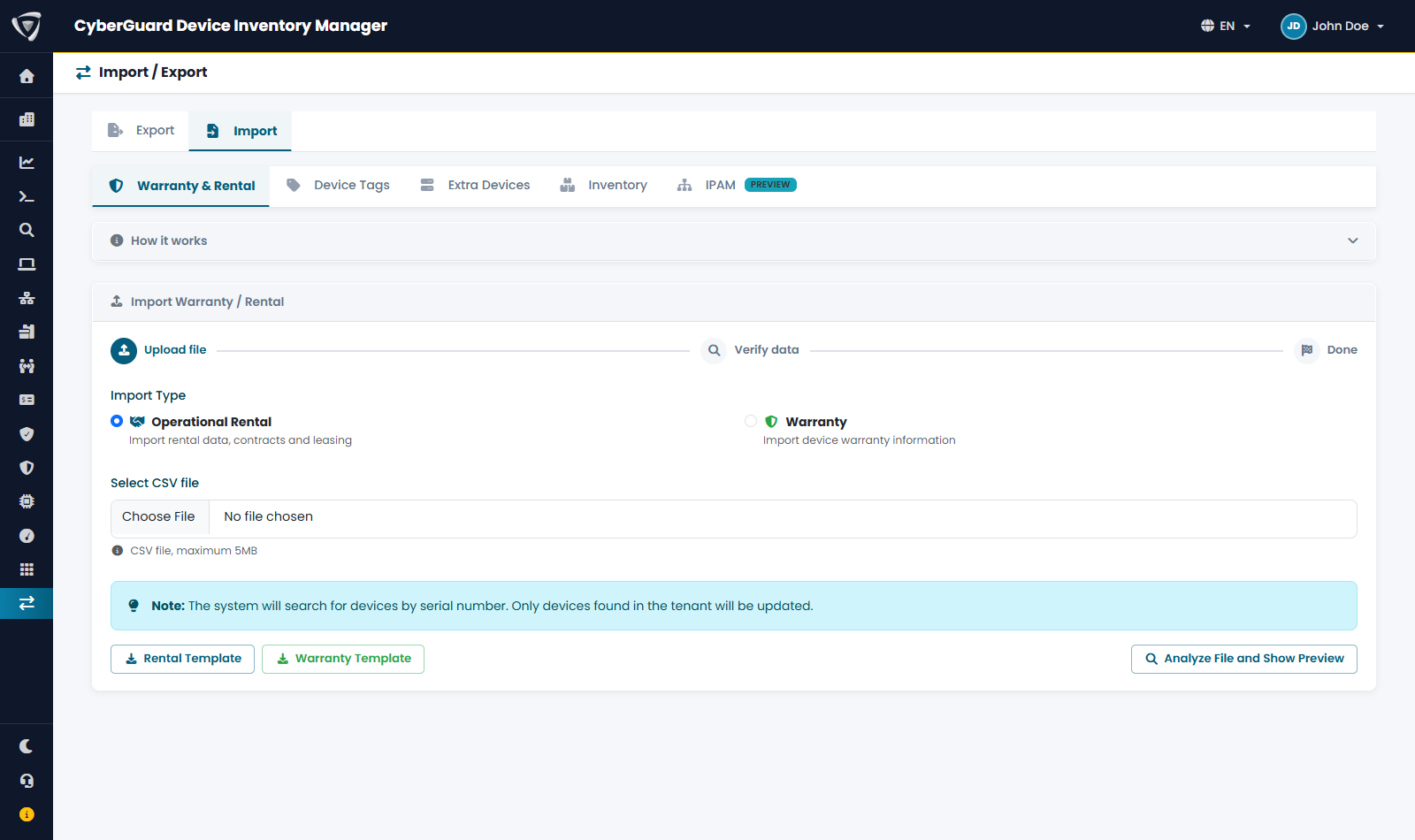
How every import works
- Download the template with the button in the tab. It contains the right columns and example rows: delete the examples and add your data.
- Upload the file and click Analyze File and Show Preview.
- Check the preview: each row shows the new value next to the current one, and a status: OK, warning, or error with the reason. The counters at the top show total rows, valid rows, rows with errors and devices found.
- Click Confirm Import. Only valid rows are imported; rows with errors are skipped.
- The result shows how many rows were processed, updated and failed. Click New Import to start again.
Nothing changes until you confirm. The preview stays available for 15 minutes; after that, upload the file again.
File format
| Rule | Value |
|---|---|
| Separator | Semicolon (;) |
| Encoding | UTF-8. From Excel, use Save As › CSV UTF-8. |
| First row | Column names, exactly as in the template (they are case-sensitive). |
| Maximum size | 5 MB, up to 5,000 rows. |
| Dates | yyyy-MM-dd (recommended) or dd/MM/yyyy. |
Devices are found by serial number. Spaces before and after are ignored, and upper or lower case does not matter. Check that the serial number is the same as in Microsoft Intune.
Warranty & Rental
Choose the Import Type (Operational Rental or Warranty) and download the matching template. The import only updates devices that already exist; it never creates them. All columns are required in every row.
Operational Rental
SerialNumber;RentalCompany;RentalCode;RentalPeriod;PurchaseDate
5CG1234ABC;Grenke;GR-2026-001;36;2026-01-15
| Column | Content |
|---|---|
SerialNumber |
Serial number of the device. |
RentalCompany |
One of the rental companies in the list of the portal (the same you see in the device page). |
RentalCode |
Your contract number. |
RentalPeriod |
Months: 6, 12, 18, 24, 30, 36, 48, 60 or 72. |
PurchaseDate |
Start of the contract. |
Warranty
SerialNumber;WarrantyActivationDate;WarrantyType;WarrantyDurationMonths
5CG1234ABC;2026-01-15;Next Business Day Onsite;36
| Column | Content |
|---|---|
SerialNumber |
Serial number of the device. |
WarrantyActivationDate |
Start of the warranty. |
WarrantyType |
One of: Collect and Return, Extended Warranty, Next Business Day Onsite, Next Day, Premium Support, ProSupport Next Business Day, Standard. |
WarrantyDurationMonths |
Length in months. Above 120 months you get a warning. |
Devices whose warranty was retrieved from the manufacturer are skipped: the manufacturer's data cannot be overwritten.
The same imports for extra devices are in the Extra Devices tab, under Extra Device — Warranty / Rental Import, with their own templates.
Device Tags
Sets the Tag of many devices at once, for example to mark the devices of a project or a department. Tags are also used by visibility groups.
SerialNumber;Tag
5CG1234ABC;Finance
5CG5678DEF;
Leave Tag empty to clear it. Extra devices have their own tag import in the Extra Devices tab.
Extra Devices
Under Import Extra Devices from CSV you create many extra devices at once. Click File format for the full list of columns and accepted values.
DeviceName;DeviceType;Manufacturer;SerialNumber;ProductNumber;Model;LifecycleStatus;ConditionStatus;Site;PurchaseOrderNumber;InstallationDate;MaintenancePeriod;CustomSerial;Tag
Office Printer 1;Printer;HP;CNB1234567;W1A52A;LaserJet Pro;Active;Excellent;Milan;PO-2026-001;2026-01-15;36;;
| Column | Required | Content |
|---|---|---|
DeviceName, Model, Site |
Yes | Free text. |
SerialNumber |
Yes | Must not already exist, neither in the file nor in the portal. |
DeviceType |
Yes | AccessPoint, Desktop, DockingStation, Firewall, MeetingRoom, Monitor, Notebook, NAS, PanelRoom, Projector, Router, Scanner, Server, Smartphone, Printer, Switch, Tablet, Phone, UPS, Workstation, Other. |
Manufacturer |
Yes | A manufacturer from the list shown in File format. |
LifecycleStatus |
Yes | Active, Disconnected, Decommissioned, Sold, Parked. |
ConditionStatus |
Yes | Excellent, Good, Worn (shown as Worn Out), Damaged. |
ProductNumber |
No | Up to 50 characters. This column can be omitted. |
PurchaseOrderNumber, CustomSerial, Tag |
No | Free text. The column must be present, even if empty. |
InstallationDate |
No | Date. The column must be present. |
MaintenancePeriod |
No | 12, 24, 36, 48 or 60 months. The column must be present. |
The values of DeviceType, LifecycleStatus and ConditionStatus are always in English, whatever the language of the portal. This import only creates devices: to change existing extra devices use the warranty, rental and tag imports, or edit them in the portal.
Inventory
Creates or updates Inventory assets. The column names are in Italian and match the Inventory export, so you can export, edit and import the same file. See Inventory Import & Export for the columns and rules.
IPAM
Adds IP addresses, with hostname, MAC address and notes, to networks already defined in IPAM. The template contains one row for each of your networks. Addresses already entered by hand in the same network are updated; empty optional cells leave the current value. See IPAM.
If something goes wrong
| Message | What to do |
|---|---|
| Device not found in tenant | The serial number does not match any device. Check it in Microsoft Intune, or add the device as an extra device. |
| … is required | The cell is empty, or contains a date or number that cannot be read. Check the format. |
| … is not valid. Allowed values: … | Use one of the values listed in the message. |
| CSV parsing error | A column is missing or misspelled, or the separator is not ;. Start from the template. |
| Warranty retrieved from … | The warranty comes from the manufacturer and cannot be changed by import. |