
My Tenant
My Tenant in the sidebar opens the page of your organization. It is visible to tenant administrators and is where Device Inventory Manager is configured for everyone in your company.
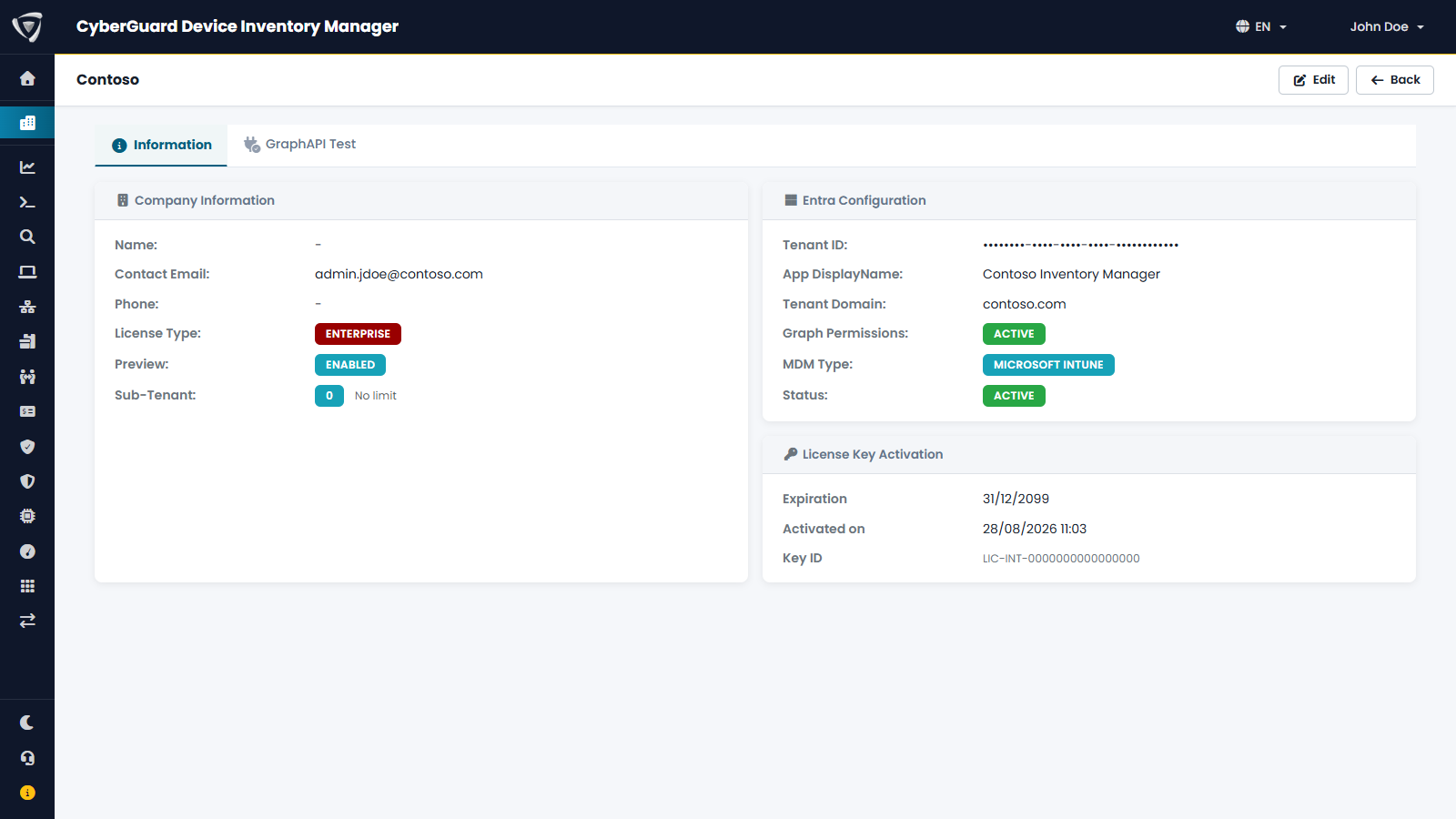
The page opens in read-only mode, with two tabs:
| Tab | What it shows |
|---|---|
| Information | Company details, the connection to Microsoft Entra and Microsoft Intune, and the license key in use. |
| GraphAPI Test | A check of the permissions that Device Inventory Manager has on your Microsoft Entra tenant. Useful when data stops arriving from Microsoft Intune. |
Click Edit to open the management tabs.
Management tabs
| Tab | What it is for | Guide |
|---|---|---|
| Information | Company name, contact, email, phone, the time zone used to show dates, and sub-tenants. | below and Multi-Tenant |
| Users | Activate users, make them administrators, assign permissions. | Users & Permissions |
| License | The license key of your organization. | below |
| Agent | Download the agent and its configuration. | Agents |
| Entra | The Microsoft Entra application used to read data from Microsoft Intune. Set up during onboarding. | — |
| SMTP | The mail server used to send emails from Device Inventory Manager. | SMTP |
| Notifications | Expiry alerts and scheduled exports by email. | Email Notifications |
| MSP | Give a managed service provider read-only access to your data. | MSP Access |
| RBAC | Limit which devices each user can see. | Device Visibility (RBAC) |
| Audit log | Who did what in the portal. | Audit Log |
Some tabs appear only when the corresponding feature is part of your subscription.
Company information
In the Information tab you can change:
- Company Name, Contact, Email for communications and Phone: the details Inside Technologies uses to reach you about the service. All communications about your license and its renewal are sent to the Email for communications.
- Data time zone: the time zone used to show dates and times across the portal and in exports. Set it to the time zone of your main office.
Click Save to apply the changes.
License
The License tab shows the license key of your organization, its expiration date and when it was activated.
When you receive a new license key:
- Open the License tab.
- Paste the key, or its Key ID (
LIC-INT-…), in the License Key field. - Click Activate License.
Tenant administrators receive the features of the new license automatically. Other users get them when an administrator turns on the corresponding permissions (see Users & Permissions). If a feature does not appear right away, sign out and sign in again.
To change or remove a license that is already active, contact Inside Technologies.