
Device Tab
The Device tab opens by default. It brings together what Microsoft Intune and the CyberGuard agent know about the device, in cards.
Hardware and firmware
| Card | Content |
|---|---|
| Processor | Brand, model, architecture, cores, frequency and release year. The label next to the year (for example CURRENT) tells you how old the processor is. It also shows whether the processor has an NPU and whether the device is a virtual machine. |
| RAM Memory | Installed physical memory. |
| Storage | Total, used and free space. |
| Firmware | Installed BIOS or UEFI version and its release date. For supported manufacturers it also tells you whether a newer BIOS is available and whether the installed one has known vulnerabilities. See Compliance. |
| Storage Status | Health of each physical disk: type, health, operational status, issues detected, temperature and SSD wear. |
These cards are filled in by the agent: without the agent, only the information provided by Microsoft Intune is shown.
Identity and user
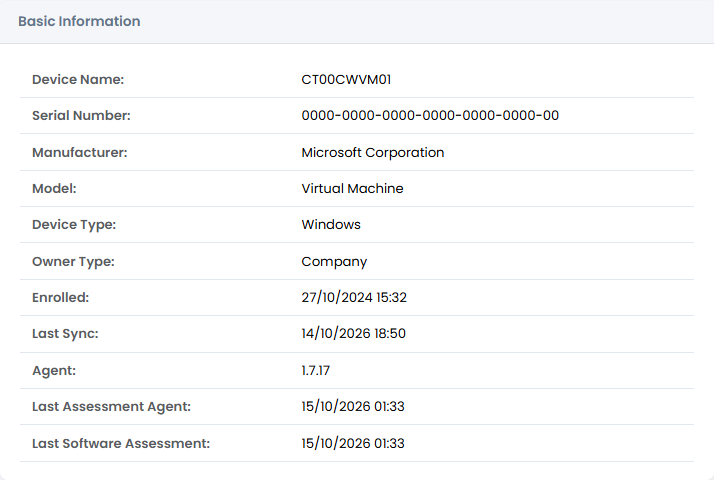
Basic Information shows the device name, serial number, manufacturer, model, device type, ownership, enrollment date and last sync with Microsoft Intune. With the agent, it also shows the agent version and the time of the last data collection (Last Assessment Agent, Last Software Assessment).
User Data shows the primary user of the device in Microsoft Intune, with email, department, job title, office and phone. Click History to see every user the device has had over time, with dates.
Operating System shows the operating system and its version.
Security
| Card | Content |
|---|---|
| Encryption (BitLocker) | Encryption state of each volume, method and percentage. |
| LAPS / BitLocker | Retrieve shows the BitLocker recovery key or the password of the local administrator account managed by Windows LAPS. Available only to users with the View BitLocker Keys or View LAPS Passwords permission; every retrieval is recorded in the Audit Log. |
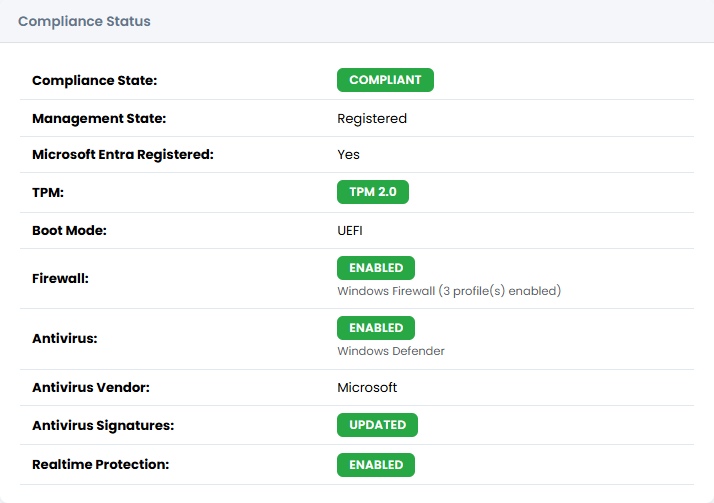
| Compliance Status | Compliance state in Microsoft Intune, management state, Microsoft Entra registration, TPM, boot mode, firewall, antivirus with signatures and real-time protection. |
When a device is not compliant, the Why not compliant? button opens the list of compliance policies assigned to the device and, for each one, the settings that are not satisfied. It is the quickest way to know what to fix.
Network & Identifiers
The network interfaces reported by the agent, with their IPv4 address and speed, and the Wi-Fi and Ethernet MAC addresses.
Notes
The last card holds the fields that Intune does not provide and that you fill in: rental, asset, warranty, purchase order, site, tag, status, condition and notes. See Editing Device Fields.