
Email Notifications
Device Inventory Manager can tell you by email when something needs attention, and send you the portal lists on a schedule. You choose which emails are sent and who receives them.
Open My Tenant › Edit › Notifications. Emails are sent only through your mail server: configure SMTP first, otherwise the tab shows only a reminder to do so.

The Configured notifications table lists every notification with its status, recipients, schedule and next send. Click the pencil icon to change one; its settings open below the table.
Recipients
Every notification has its own Recipients: one address per line, up to 20. An address can be a shared mailbox (for example warranty@contoso.com) or a person's email, even if that person does not use the portal. Use Add a portal user… to add the address of someone who already signs in.
Turn Notification enabled off to stop a notification without losing its settings.
Notification types
| Notification | When it is sent |
|---|---|
| New user awaiting approval | Right away, each time someone from your organization signs in for the first time and waits to be activated. See Users & Permissions. |
| Expiries | A summary on a schedule of warranties, rental contracts or Inventory assets that are about to expire. |
| Scheduled exports | Portal lists sent on a schedule as a ZIP attachment. |
| Networks almost full | When an IPAM network goes over the usage threshold you set. See IPAM. |
You see only the notifications for the features included in your subscription.
Expiries
Choose the Expiry type:
- Warranty expiring: devices whose warranty ends soon (see Warranty);
- Rental expiring: devices whose rental contract ends soon (see Operational Lease);
- Inventory expiry: Inventory assets that expire soon (see Inventory).
Then set the Frequency (weekly, every two weeks, monthly), the Day and Time, and the Days of notice.
An item enters the summary when it is that many days from expiry and stays there until you update its expiry date. Items that expired less than 30 days ago are reported once more. Decommissioned and sold items are excluded. If there is nothing to report, no email is sent.
Scheduled exports
Use them to receive a regular snapshot of your data, for example a weekly list of all devices for the finance team.
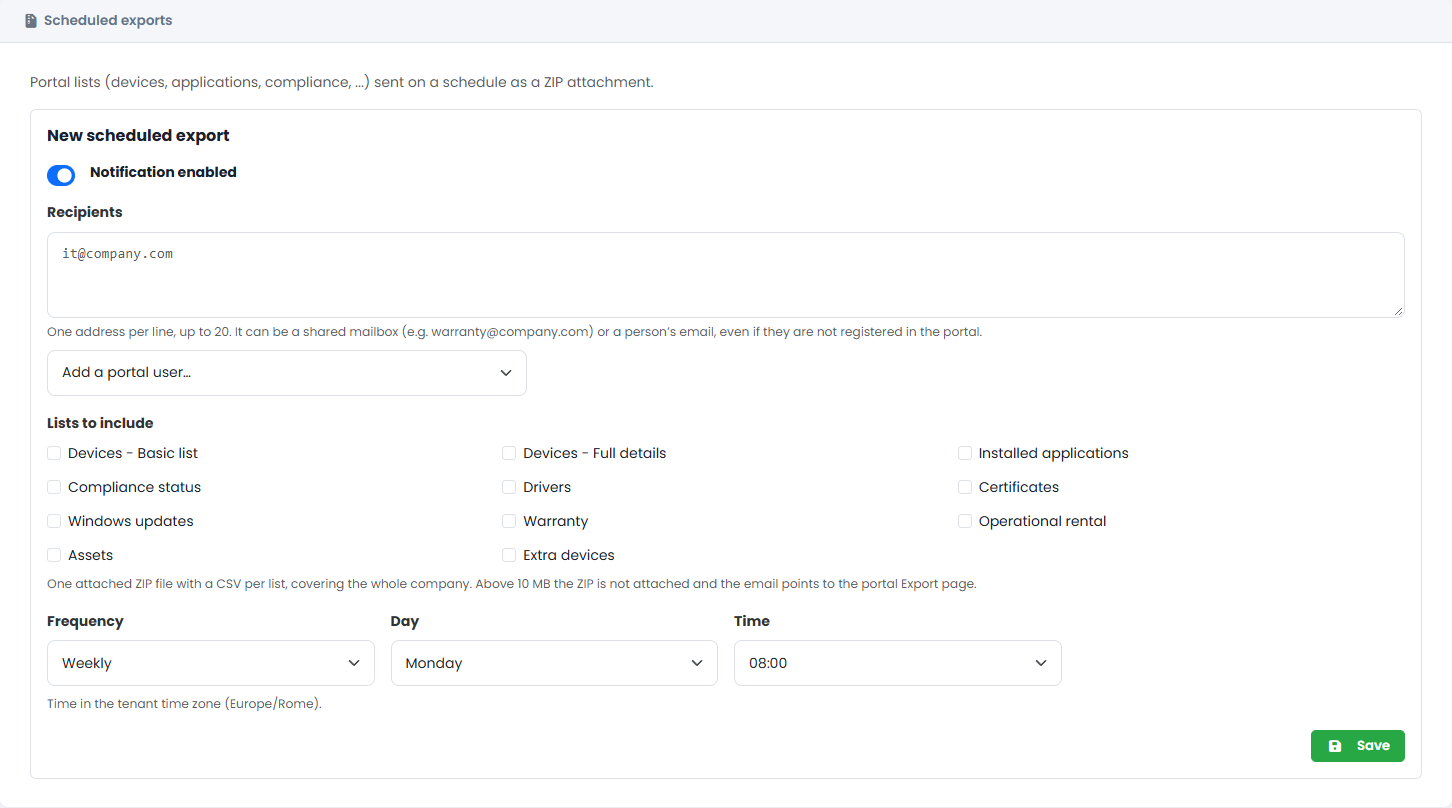
- Under New scheduled export, enter the Recipients.
- In Lists to include, select the lists you want: devices, applications, compliance, drivers, certificates, Windows updates, warranty, operational rental, assets, extra devices.
- Choose Frequency, Day and Time.
- Click Save.
The email contains one ZIP file with a CSV file per list, covering all your devices. The content is the same as the corresponding exports. If the ZIP is larger than 10 MB, it is not attached and the email asks recipients to download the data from the portal.
You can create several scheduled exports, for example one for the finance team and one for the help desk.
Times and language
Times refer to the time zone set in My Tenant. Emails are written in the Email language set in the SMTP tab.