
Networking
Laptops and desktops report to Device Inventory Manager through Microsoft Intune and the agent. Switches, firewalls, access points, printers and UPS units do not: Networking brings them into the inventory, and keeps track of the IP addresses your networks use.
Open Networking from the Features tab of the Dashboard or from the side menu. The area has two tabs:
| Tab | What it is for |
|---|---|
| Devices | The network devices found by the network probe, a small Windows service that you install in your network. For each device you see its IP address, name, vendor, model, serial number and firmware, and you can save it as an extra device to manage its warranty, contract and asset data. See Network Devices. |
| IPAM | The catalog of your networks and of the IP addresses they use: networks and subnets, VLANs, reserved ranges, free addresses. The addresses of network devices and of Windows and macOS computers are added automatically; you add the others by hand. See IPAM. |
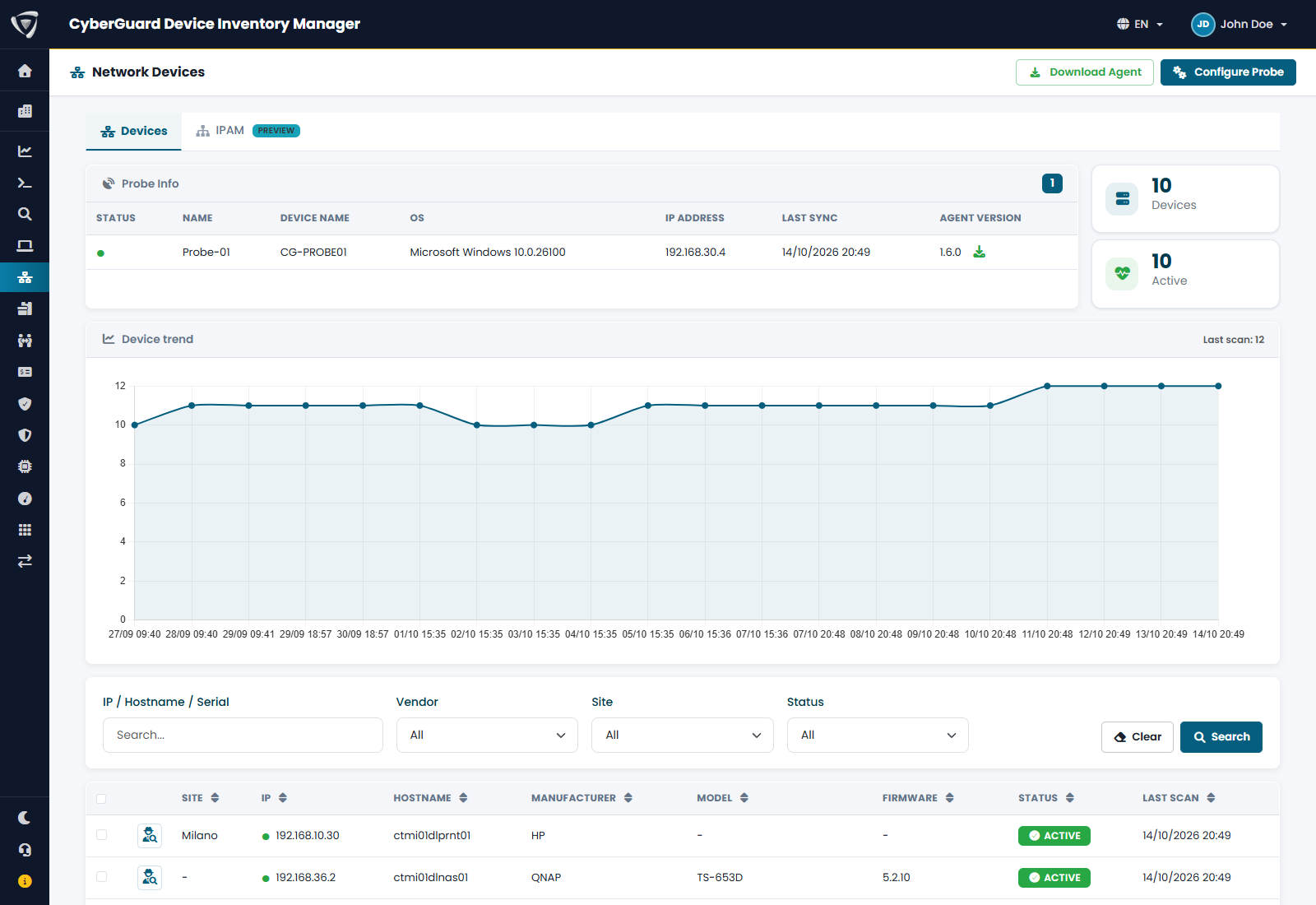
The two tabs work well together, but each one can be used on its own: you can catalog your networks in IPAM without installing a probe, or use the probe without registering any network.
Who sees Networking
You see a tab only if your permission group includes it: network devices for the Devices tab, IPAM for the IPAM tab (see Users & Permissions). If you have only one of the two, Networking opens directly on it.
A partner with MSP Access sees both tabs in read-only mode.
Getting started
- Check the requirements of the network probe.
- Create and configure a probe: the networks to scan and the SNMP credentials of your devices.
- Install the probe on a Windows machine of your network.
- Register your networks in IPAM, so that the IP addresses of network devices and computers are cataloged by network.