
Agents
Microsoft Intune tells Device Inventory Manager which devices you have and how they are configured. The CyberGuard DIM agent adds what Intune does not collect: detailed hardware, firmware and BIOS, installed applications, Windows updates, drivers, certificates, performance and network data, and software usage.
You install the agent once on every Windows PC and Mac. From then on it sends its data on its own, at the frequency you choose.
| Platform | Package | What it collects |
|---|---|---|
| Windows (64-bit) | Signed Windows service | Hardware, firmware, applications, updates, drivers, certificates, performance, network, software metering |
| macOS (Apple Silicon) | .pkg package |
Hardware, applications, updates, drivers |
Software metering is available on Windows only. Intel Macs are not supported.
Where to find it
Open My Tenant, click Edit and select the Agent tab. The tab is available to tenant administrators.
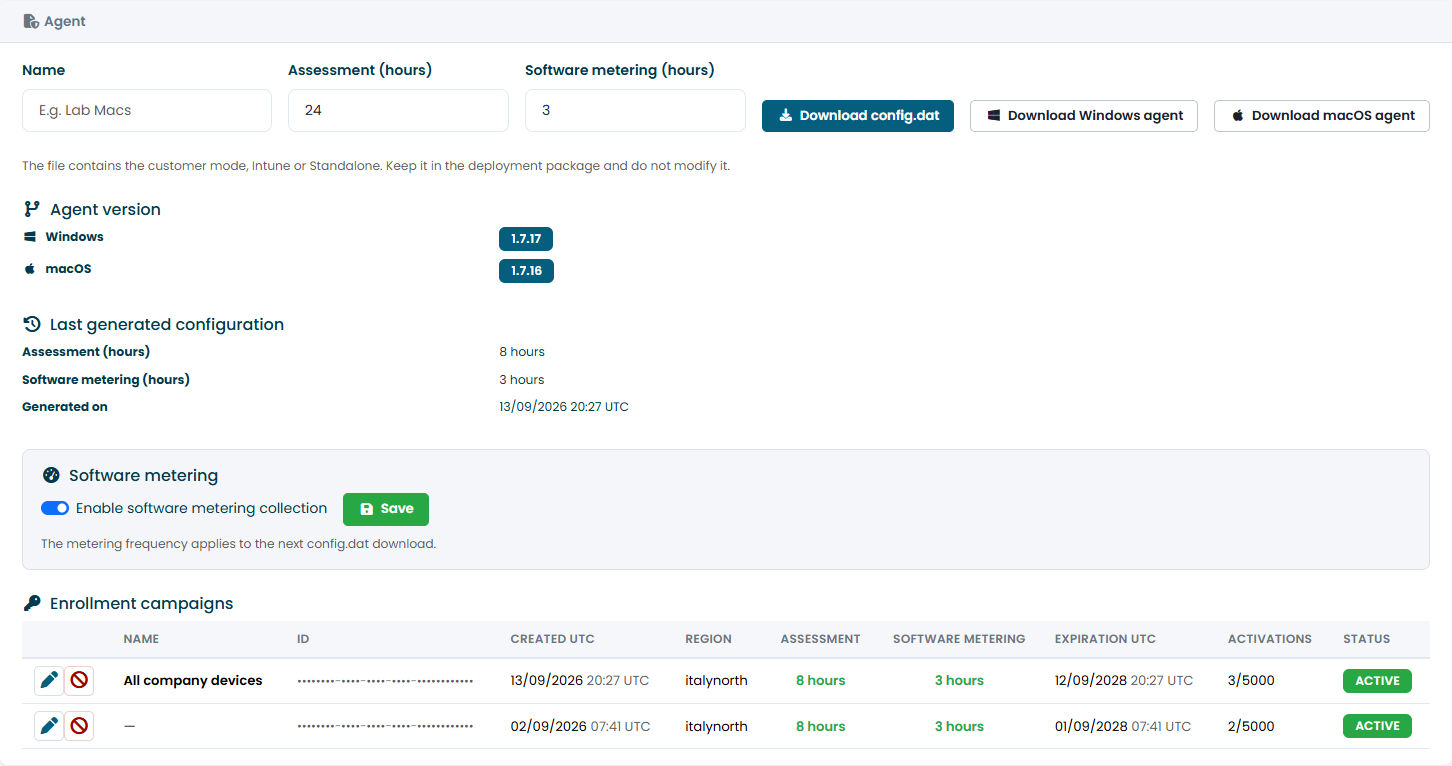
| Area | What it is for |
|---|---|
| Download config.dat | Creates a new enrollment campaign and downloads its configuration file. |
| Download Windows agent / Download macOS agent | Downloads the latest package for that platform. |
| Agent version | The latest version available for each platform. |
| Last generated configuration | The frequencies used for the most recent config.dat. |
| Software metering | Turns software usage collection on or off for your tenant. |
| Enrollment campaigns | Every config.dat you have generated, with its activations and status. |
Enrollment campaigns and config.dat
Every agent needs a config.dat file. It tells the agent which tenant it belongs to and how often to collect data, and it contains an enrollment code that lets the agent register itself the first time it starts.
Each time you click Download config.dat, the portal creates a new enrollment campaign:
- Enter a Name that tells you where the file is used, for example All company devices or Lab Macs. The name is required.
- Set Assessment (hours): how often the agent collects hardware, applications, updates and the rest of the device data.
- If software metering is enabled, set Software metering (hours): how often the agent sends software usage.
- Click Download config.dat.
The same file is used on Windows and macOS. A campaign is valid for two years and allows up to 5,000 installations; the Activations column shows how many devices have used it.
From the campaign list you can:
- Rename a campaign (pencil icon).
- Revoke a campaign (stop icon): devices that have not registered yet can no longer use that
config.dat. Agents already installed keep working. - Delete a revoked campaign, as long as no installation is linked to it.
To change the collection frequency, download a new config.dat and update your deployment package with it. Revoke the old campaign once every device has the new file.
Keep config.dat private. Do not edit or rename it, do not paste its contents into tickets or scripts, and never use one tenant's file for another tenant.
Software metering
Software metering records how long each application is used on Windows PCs. To collect it:
- In the Software metering box, turn on Enable software metering collection and click Save.
- Download a new
config.dat: the setting applies only to files generated after the change. - Deploy the new file to your devices.
The results are described in Software Metering.
Deploying the agent
| Tool | Guide |
|---|---|
| Microsoft Intune, Windows | Windows with Microsoft Intune |
| Microsoft Intune, macOS | macOS with Microsoft Intune |
| ManageEngine, Group Policy, RMM, manual installation | Other Deployment Tools |
When the agent has sent its first data, the device page shows the agent version and the time of the last collection. See Device Tab.
Updates
New agent versions are published by CyberGuard and appear under Agent version. To update, download the new package, replace the agent in your deployment while keeping the same config.dat, and publish it as a new version. Each guide explains how to do this so that devices actually receive the update.