
SMTP
Device Inventory Manager sends emails to your people: expiry alerts, scheduled exports, new users to approve, onboarding and offboarding confirmations for employees. These emails leave from your mail server, so that they come from a sender your users know and trust.
Configure it in My Tenant › Edit › SMTP.
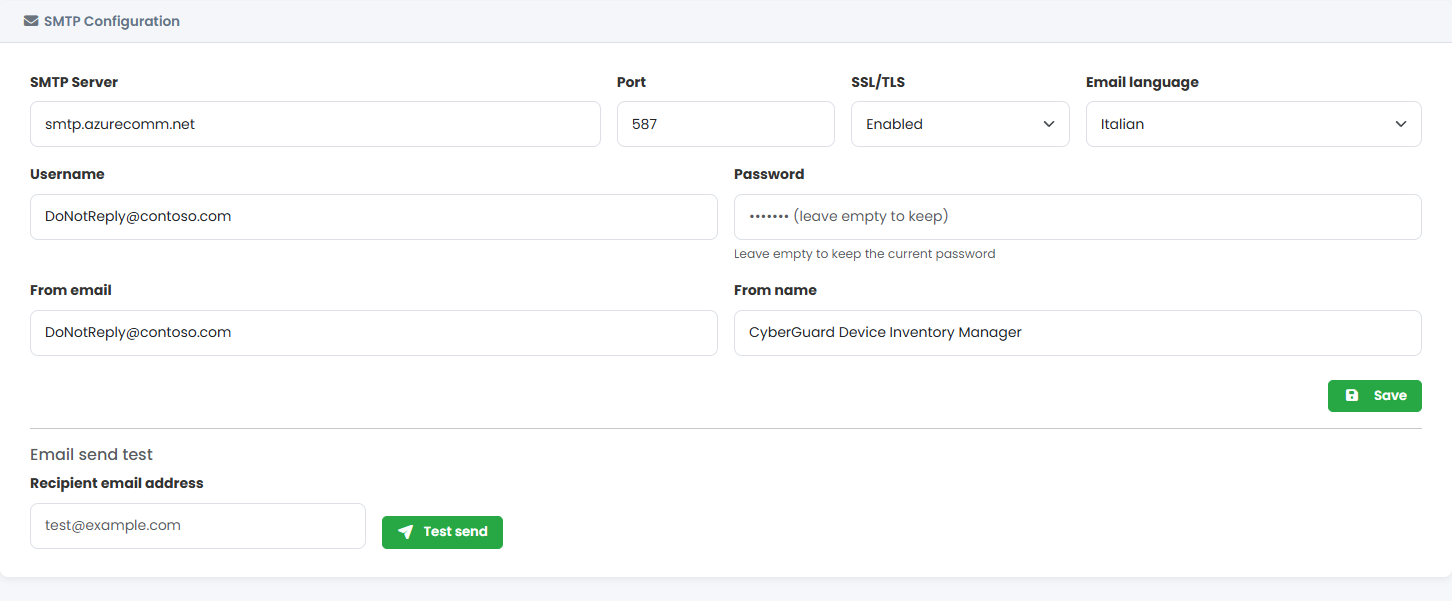
| Field | Value |
|---|---|
| SMTP Server | The address of your mail server or relay, for example smtp.office365.com. |
| Port | Usually 587. |
| SSL/TLS | Enabled for port 587 or 465. |
| Email language | The language of the emails sent to employees and users: Italian or English. |
| Username / Password | The account used to authenticate on the server. Leave the password empty to keep the one already saved. |
| From email / From name | The sender shown to recipients, for example it@contoso.com and Contoso IT. |
Click Save, then check the configuration: enter your address in Recipient email address and click Test send. If the test email does not arrive, check the server, port, credentials and that the account is allowed to send as the From email address.
With Microsoft 365, the account must be allowed to use authenticated SMTP (SMTP AUTH). Alternatively, use an SMTP relay or a service such as Azure Communication Services.
What depends on SMTP
| Without SMTP | |
|---|---|
| Email Notifications: expiries, scheduled exports, networks almost full, new users to approve | Not sent. The Notifications tab asks you to configure SMTP first. |
| Staff Management: onboarding confirmations and offboarding reports for employees | Not sent. |
If the password of the mail account changes or the account is disabled, emails fail without further warning. Update this tab whenever you change the account.