
MSP Access
MSP Access lets a managed service provider (MSP), the IT partner that looks after your devices, see your data in Device Inventory Manager in read-only mode, using its own account.
When to use it
Use MSP Access when an external company supports your IT and needs to see your fleet: to check compliance, look up a device before an intervention, verify warranties or prepare an offer for replacements.
Without MSP Access, the partner would need an account in your Microsoft Entra tenant and would appear among your users. With MSP Access:
- the partner signs in with its own account, in its own Device Inventory Manager;
- you do not create guest accounts or assign licenses to the partner;
- the partner can only look: it cannot change, import, export, delete or synchronize anything;
- you can revoke access at any time, with immediate effect;
- every page the partner opens is recorded in your Audit Log.
If instead the partner must work on your data, for example to fill in warranties or manage onboarding, give its people a user account in your tenant (see Users & Permissions).
The partner needs its own Device Inventory Manager subscription for MSPs. Ask Inside Technologies if your partner does not have one yet.
Giving access to a partner
Open My Tenant › Edit › MSP.

- In Label, enter the name of the partner, for example Fabrikam IT Services. It helps you recognize the partner in the list.
- Click Generate key.
- Copy the key that appears. It is shown only once: if you lose it, generate a new one.
- Send the partner the key together with Your Tenant ID, shown in the same tab. Use a secure channel.
The partner appears in the list as Pending until it uses the key, then as Active, with the date of the pairing and its last access.
Each key works for one partner and only once. To give access to a second partner, generate another key: revoking one partner does not affect the others.
Revoking access
Click Revoke next to the partner and confirm. The partner loses access immediately, at its next click. You can revoke access at any time, even if your subscription has expired.
What the partner sees and can do
The partner sees your devices and the fleet views (compliance, applications, updates, drivers, warranty, rentals, network, Inventory) according to the features of your subscription. BitLocker recovery keys and LAPS passwords are visible, because the partner usually needs them for support.
The partner cannot:
- change any field or setting, or delete anything;
- import or export data;
- use Staff Management (onboarding and offboarding);
- start a synchronization or download the agent;
- open your My Tenant page;
- run queries in Query Explorer.
For partners: adding a customer
If you are the MSP:
- In your own Device Inventory Manager, open My Tenant › Edit › MSP. The Clients I manage section is available with the MSP subscription.
- Enter the Client Tenant ID and the API Key you received from the customer.
- Click Pair.
The customer appears in the list with its status.
For partners: switching between customers
Once paired, your customers appear in the selector in the top bar, under Managed clients.
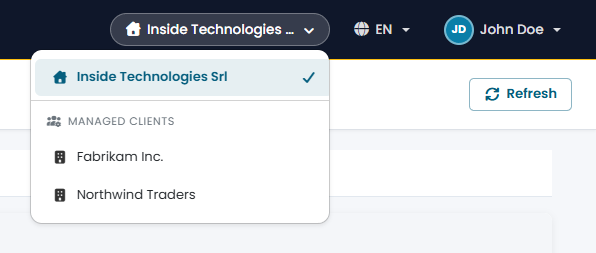
Choose a customer to see its data: the portal shows it in read-only mode, with a banner that reminds you whose data you are looking at.
Click Back to my tenant in the banner to return to your own data.