
Internal Activities
An activity is a record of work: something that needs to be done, something that was done, how a problem was solved. Activities live in the Activities tab of the Workspace.
Recording an Activity
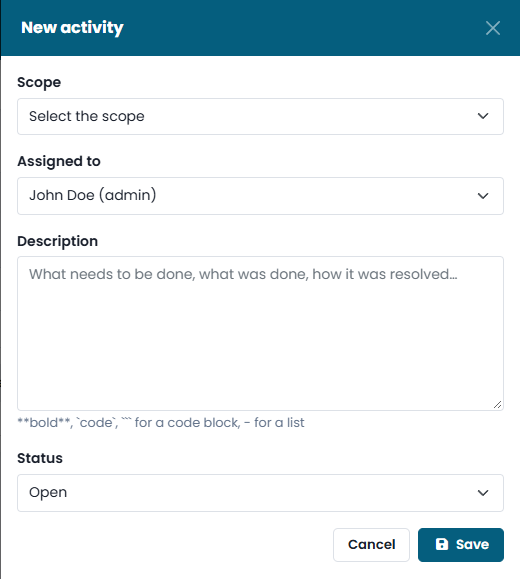
Click New activity in the Workspace, use the Workspace button at the bottom right of any page, or start from a finding, an object, an incident or a MITRE technique with Document in the workspace / Add activity: in that case the activity is linked to that item automatically.
| Field | What to enter |
|---|---|
| Scope | The area the activity belongs to: Active Directory, Microsoft Entra, Microsoft 365, Microsoft Defender XDR, Compliance or Networking. |
| Assigned to | Who is in charge of it. Leave it unassigned if it is just a note. |
| Description | What needs to be done, what was done, how it was resolved. You can format the text: **bold**, `code`, ``` for a block of code (useful for commands and queries), - for a list. |
| Status | Open while the work is in progress, Resolved when it is done. |
The activity records the author and the date automatically.
Finding and Following Activities
The Activities tab lists all activities with the last update, scope, description, owner, author and status. Filter them by:
- Scope — for example only Active Directory;
- Assigned to — Assigned to me, unassigned, or a specific person;
- Status — open, resolved or all;
- Search — text, item or author.
Open an activity to edit it, mark it as resolved or reopen it. When you open a finding or an incident that already has activities, you see their history: what was done before, by whom and when.
Good Practices
- Record the decision as well as the action: why a finding was left open, why a risk was accepted, what compensating control is in place.
- Assign each open activity to someone, and resolve it as soon as the work is done: idle activities show up in the Dashboard and in the weekly summary.
- After a remediation, run a new assessment and check the result in What changed, then resolve the activity.