
Microsoft 365
The Microsoft 365 assessment analyzes how your collaboration environment is configured: mail, SharePoint and OneDrive sharing, Teams, data protection with Purview, devices managed with Intune, Copilot Studio agents and Microsoft Defender. It is collected by the Microsoft 365 agent, together with the information the portal reads through the Microsoft Entra app.
Running the Assessment
From Assessment → Microsoft 365, click Run Assessment. If the agent is installed as a service, it completes the assessment by itself; assessments can also run automatically on a schedule. While the agent works, the banner at the top of the detail page shows its progress service by service (Exchange, Defender, Purview, SharePoint, Teams, mailboxes) and updates by itself; when the scan is over it shows the result.
Sections that your licenses do not include — for example Data Loss Prevention or Defender for Office 365 — are marked as not available instead of appearing empty.
What It Covers
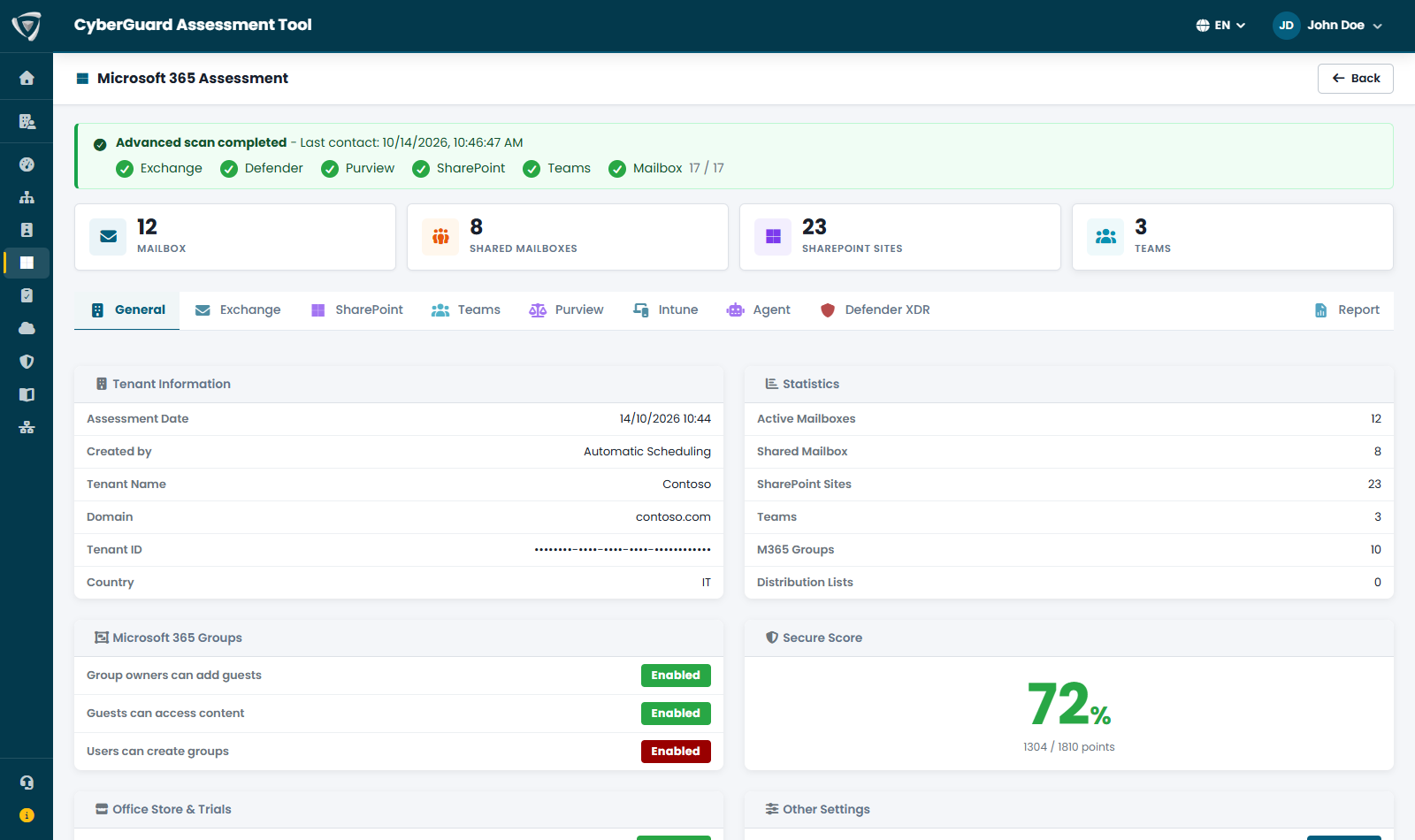
The counters at the top show mailboxes, shared mailboxes, SharePoint sites and teams. The detail is organized in tabs:
| Tab | What you find |
|---|---|
| General | Tenant information and statistics, Microsoft 365 group settings, Secure Score, Office Store and trials. |
| Exchange | Mailboxes and shared mailboxes (including shared mailboxes with sign-in enabled), connectors and transport rules, mail flow settings and protection, calendar sharing, domains, audit and logging. |
| SharePoint | Sharing settings, the list of sites and, in preview, the analysis of the sharing links created on SharePoint and Teams sites: files and folders shared with anyone, with the whole organization or with specific people. Personal OneDrives are excluded. |
| Teams | Guest access, messaging safety, allowed apps, meetings and lobby, external file providers, Copilot and AI in meetings, voice and face recognition, and the list of teams. |
| Purview | Data Loss Prevention policies and rules, retention policies, sensitivity labels, mailbox audit bypass. |
| Intune | Managed devices with their compliance and last sync, and configuration profiles with their assignments. |
| Agent | Governance of Copilot Studio agents (requires the optional Dataverse configuration). |
| Defender XDR | Microsoft Defender for Identity sensors and health issues, and Defender for Office 365 policies. |
| Report | The PDF report and the CSV exports. |
If your organization does not use Intune or Microsoft Defender, turn them off in Company Profile → Edit → Entra / AD → Intune and Defender XDR monitoring: their checks are skipped and they no longer affect reports and score.
Intune
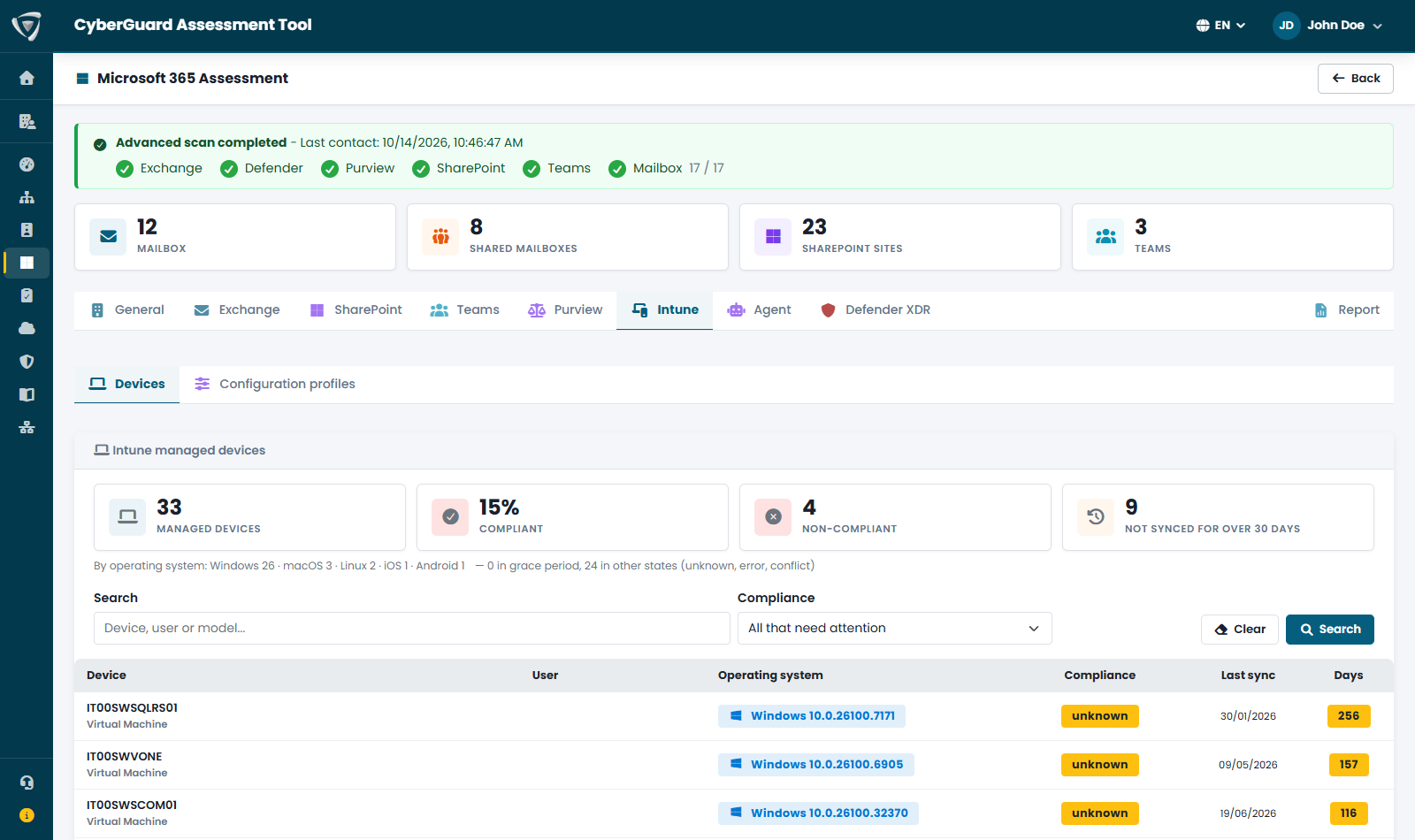
The Intune tab summarizes your managed devices — how many, the share of compliant ones, the non-compliant ones and those not synchronized for more than 30 days — and lists by default the devices that need attention, with operating system, compliance state and days since the last sync.
Incomplete SharePoint Site Data
In the SharePoint tab, the Site list may show Type, Sharing and Size as empty, with a banner at the top of the list. The assessment ran correctly: this depends on a privacy setting of your Microsoft 365 tenant.
Why It Happens
By default, Microsoft 365 conceals user, group and site names in its usage reports. CyberGuard reads these three columns from the SharePoint usage report. When names are concealed, the report also hides the real identifiers of the sites, so there is no way to tell which site each row refers to, and the data cannot be shown.
Only per-site information from that report is affected: the three columns above, and the count of links open to anyone used by the attack paths. Site names, addresses, version settings and dates are still collected, and so are the other sections of the assessment. The Shared links column comes from the sharing links analysis and does not depend on this setting.
What You Can Do
CyberGuard never changes this setting, and the CyberGuard app has no permission to do so: the choice is yours. It is a tenant-wide setting, so before you change it, consider that it applies to all Microsoft 365 usage reports, in the Microsoft 365 admin center, Microsoft Graph and Power BI, and to the usage reports in the Microsoft Teams admin center. Whoever can open those reports will see real names, including user names.
If you decide to change it:
- Sign in to the Microsoft 365 admin center as an administrator.
- Go to Settings → Org settings and open Reports.
- Clear Conceal user, group, and site names in all reports and save.
- In the portal, open your latest assessment, go to the Site list and click Refresh in the banner.
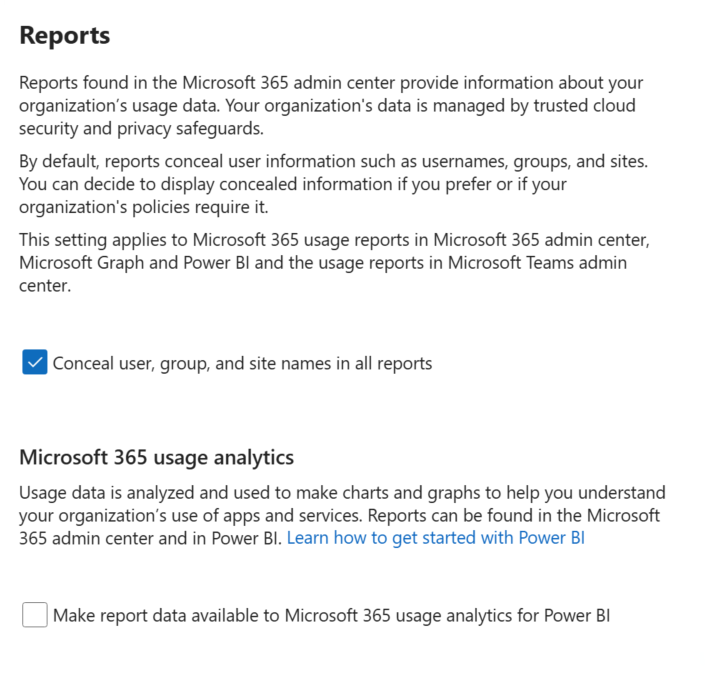
Refresh reads the SharePoint usage report again and fills in the columns, so you don't need to run the assessment again. The assessment keeps its date, and the score is recalculated. If the report still conceals names, nothing changes and the banner tells you: check the setting and try again.
Refresh is only available on the latest assessment, because the report describes your tenant as it is today: older assessments do not change. If you select the option again later, the following assessments will show the banner again.
Findings and Report
Problems found become findings that weigh on the Microsoft 365 score — for example sharing with anyone allowed in SharePoint, mailbox auditing disabled, unsafe Teams settings or non-compliant devices. You find them in the Security Score, and the paths an attacker could take to your organization's mail, files and conversations in the attack paths. The Report tab produces the PDF report, in English or Italian.