
Portal Reference
This page explains how the CyberGuard portal is organized: the navigation menu, the top bar and the elements you find on every page.
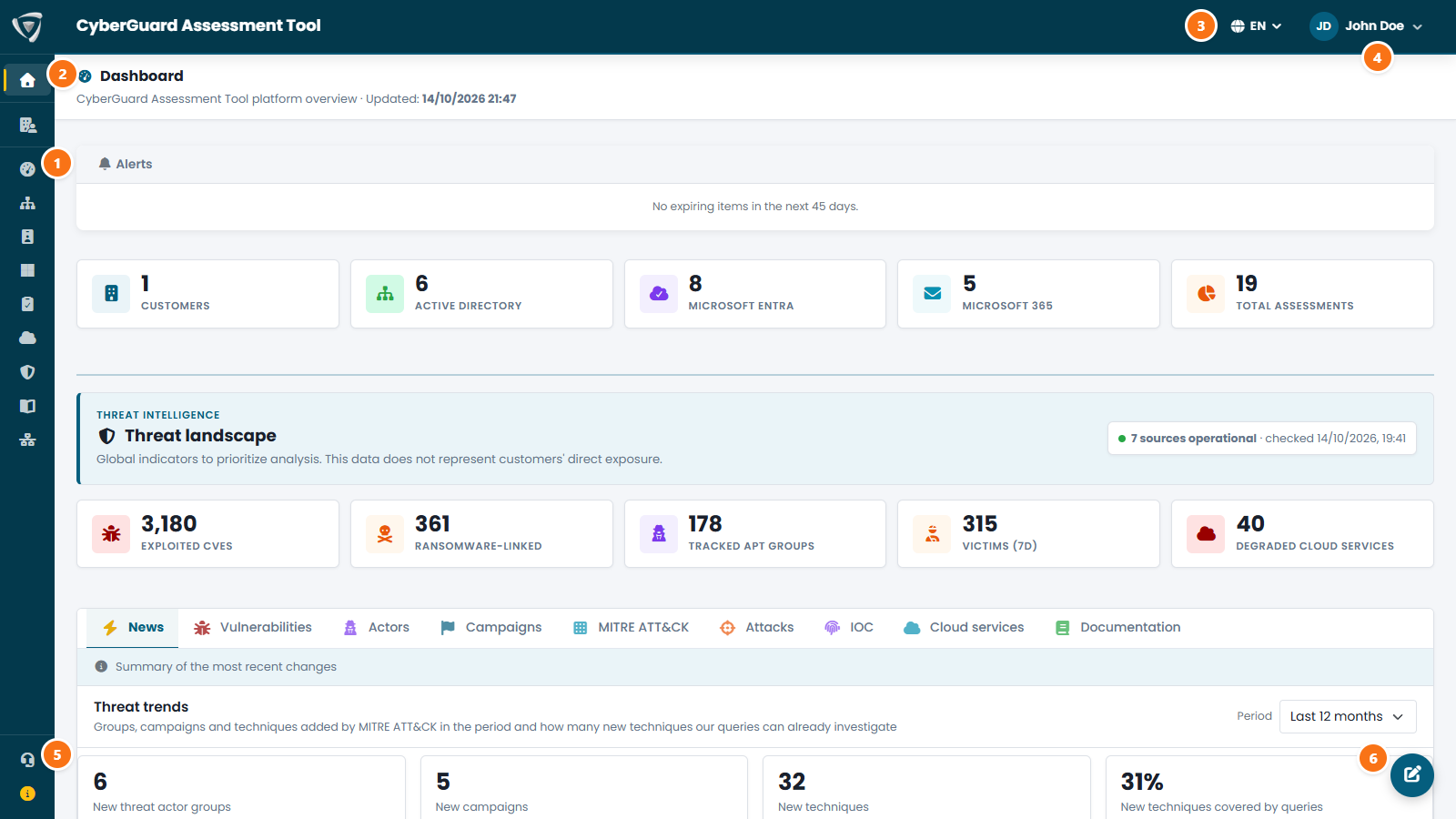
- Navigation menu — one icon per area of the portal. Hover an icon to see its name.
- Page header — the title of the current page and, on the right, its main actions (for example Run Assessment or Edit).
- Language — switch the portal between English and Italian. Reports and findings follow the language you choose.
- Account menu — your name and the Sign out command.
- Support — open a support request, with an attachment if needed (zip, images or PDF up to 10 MB).
- Workspace button — available on every page, records an activity in the Workspace without leaving what you are doing.
Signing In
You sign in with your Microsoft work account. The first time you access the portal, an administrator of your organization may need to approve your account and assign your permissions: see Users & Permissions.
Navigation Menu
| Menu item | What it is for |
|---|---|
| Dashboard | Alerts on your configuration, assessment counters and the global threat landscape. See Dashboard. |
| Company Profile | Your organization's details and configuration (see below). |
| Security Score | The overall score, attack paths and what changed between assessments. See Security Score. |
| Active Directory | Assessments of your on-premises domains. See Active Directory. |
| Microsoft Entra | Assessments of your Microsoft Entra tenant. See Microsoft Entra. |
| Microsoft 365 | Assessments of Exchange Online, SharePoint, Teams, Intune and Defender. See Microsoft 365. |
| Compliance Assessments | Questionnaires on security regulations. See Compliance Assessments. |
| Microsoft Security View | Microsoft Defender vulnerabilities, incidents and KQL queries. See Microsoft Security View. |
| Workspace | Activities and saved KQL queries of your team. See Workspace. |
| Network Assessment | Results of the network probe. See Network Assessment. |
| Support | Support requests to Inside Technologies. |
| About | Portal version and platform release. |
The menu shows only the areas enabled for your organization: if you don't see one of them, it is not active for your account.
Company Profile
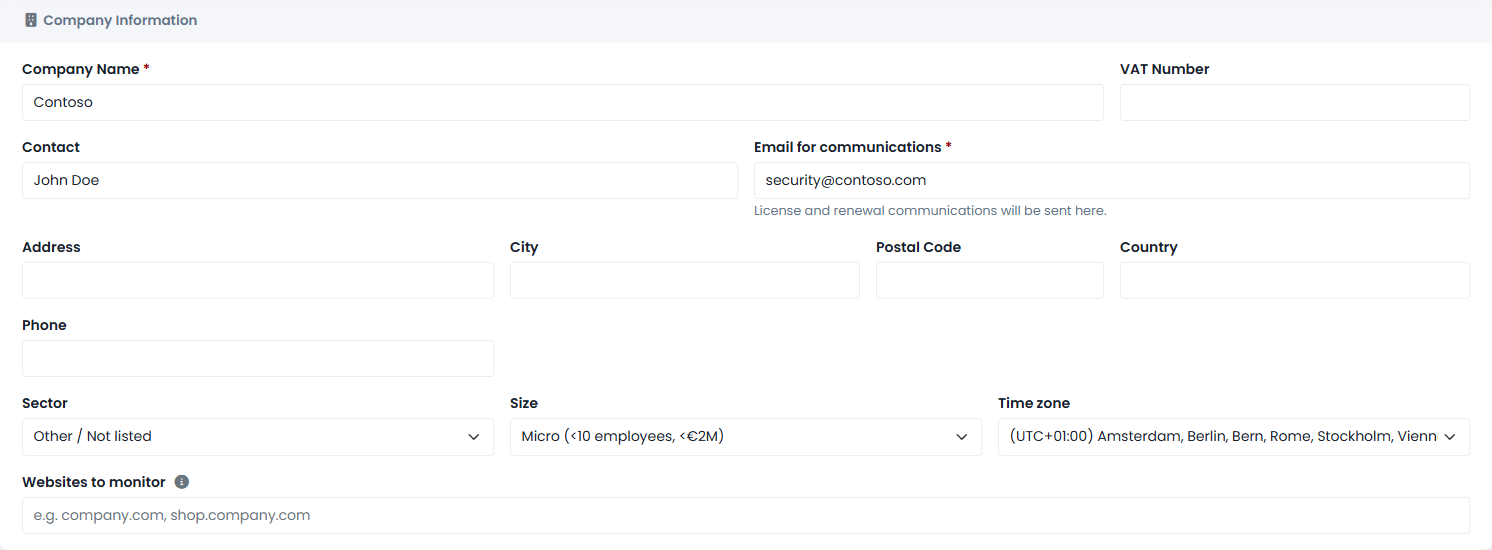
Company Profile shows your organization's details and the status of the connection with Microsoft Entra. With Edit you reach the configuration, organized in tabs:
| Tab | What you configure |
|---|---|
| Information | Company name, contacts and sector, and the Websites to monitor: your domains, separated by commas (a domain also covers its subdomains). The sector drives the ransomware alert and the websites the DDoS alert on the Dashboard. |
| Users | Who can access the portal and with which permissions. See Users & Permissions. |
| Entra / AD | Domains, emergency (break-glass) accounts and the registration of the CyberGuard app. See Microsoft Entra App. |
| Scheduling | Automatic assessments and the probes installed in your environment. See Scheduling. |
| SMTP and Notifications | The mail server used for notifications and who receives each notification. See Email Notifications. |
| Audit Log | Who did what in the portal, and when. |
Preview Features
Features still in preview are marked with a yellow Preview tag in the page title or in the tab name. They are fully usable, but they may still change as we collect feedback.