
Security Score
The Security Score puts together the results of your Active Directory, Microsoft Entra and Microsoft 365 assessments. It answers three questions: how secure is each part of my environment, what are the open problems, and which ones should I fix first.
The page has three tabs:
- Overview — scores, open findings and the score of each area (this page).
- Attack paths — how an attacker could chain the open findings to take control of your environment.
- What changed — the comparison between two assessments.
Scores
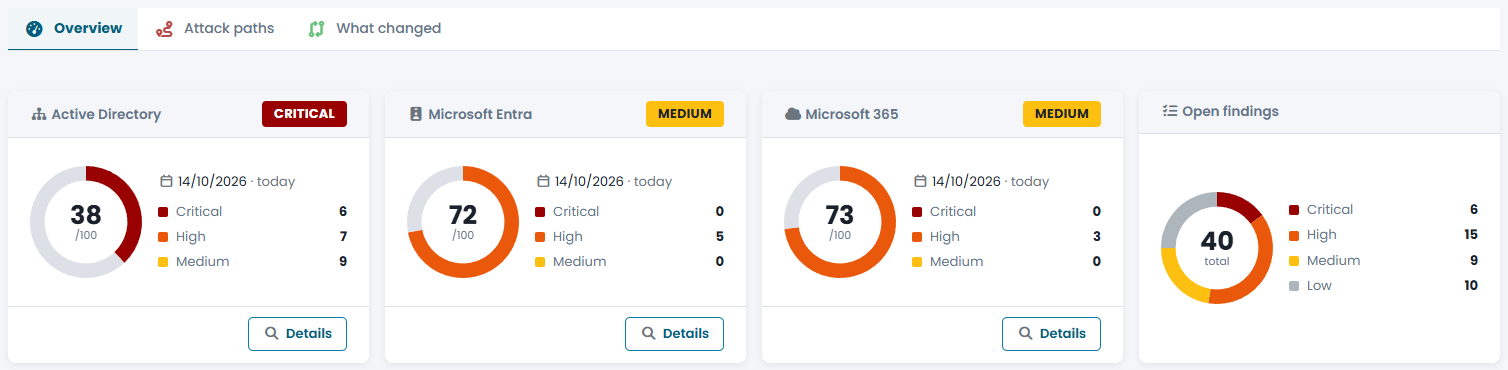
Each technology has a score from 0 to 100, calculated from the findings of its latest assessment, and a risk level: Low, Medium, High or Critical. Next to the score you see the date of the assessment it comes from and how many critical, high and medium findings are open. If the assessment is older than 30 days, a warning reminds you that the data may no longer reflect the current situation: run a new assessment.
The Open findings card counts all open findings by severity, for all technologies together. Details opens the assessment the score comes from.
The Security posture chart below compares the three technologies and shows, area by area, where each one is strong or weak.
Findings
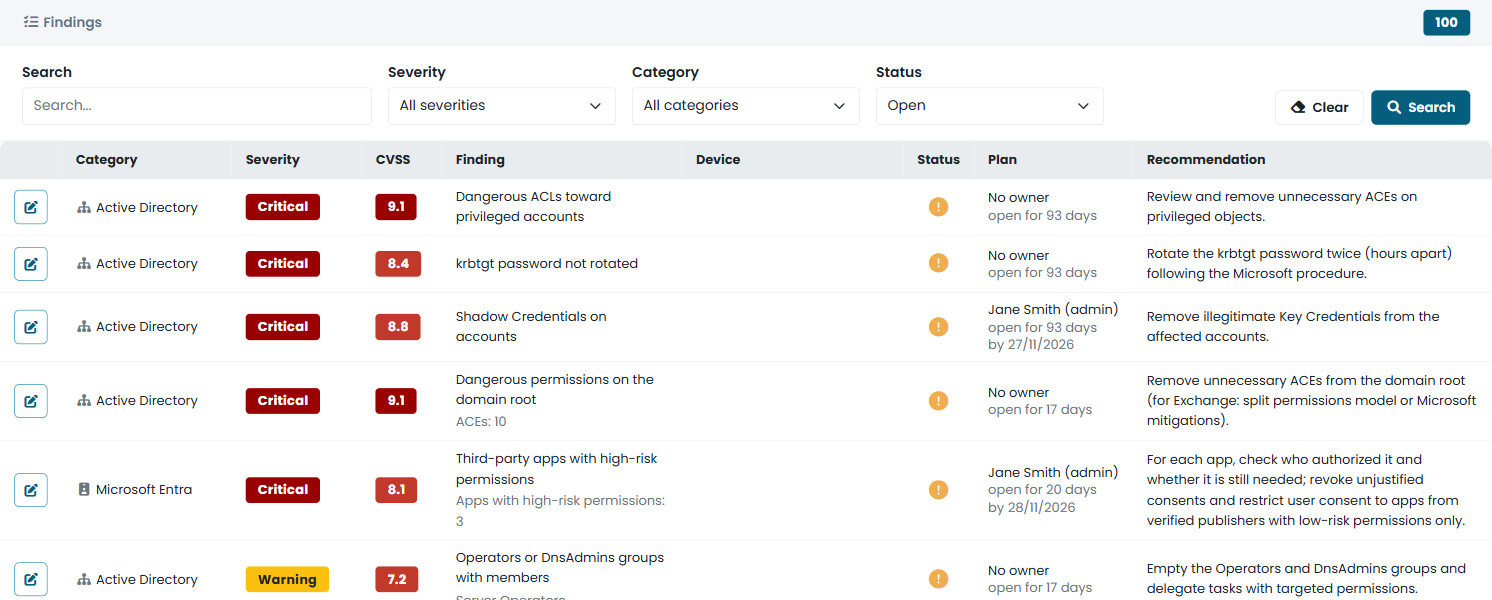
The Findings list shows every open finding of every technology, sorted by severity, 40 per page. For each finding you see its status, the technology, the severity and its CVSS score, what was found (with the objects involved), the recommended fix and the Plan: who owns the finding, how long it has been open and its target date, in red when it has passed.
Use the filters to search by text, severity, category or status. The pencil in the first column opens the finding in the Workspace panel, where you plan it — status, owner, target date — and record what you did. Every finding is also part of the remediation plan, which tracks it until a new assessment no longer reports it.
Accepting a Risk
Sometimes a finding cannot be fixed, or the risk is covered in another way. In that case an administrator can accept the risk: open the finding with the pencil, set its status to Risk accepted, choose until when the acceptance lasts and write the reason (and any compensating controls) in the note.
An accepted risk:
- leaves the list of open findings (set the Status filter to see accepted risks too) and the action plan of the reports, which list it in a dedicated section with reason and expiry;
- does not change the score: the problem is still there;
- stays visible in the attack paths, where the step is marked as an accepted risk;
- becomes an open finding again by itself when it expires. An administrator can also revoke the acceptance at any time, by setting the status back to To do.
Areas
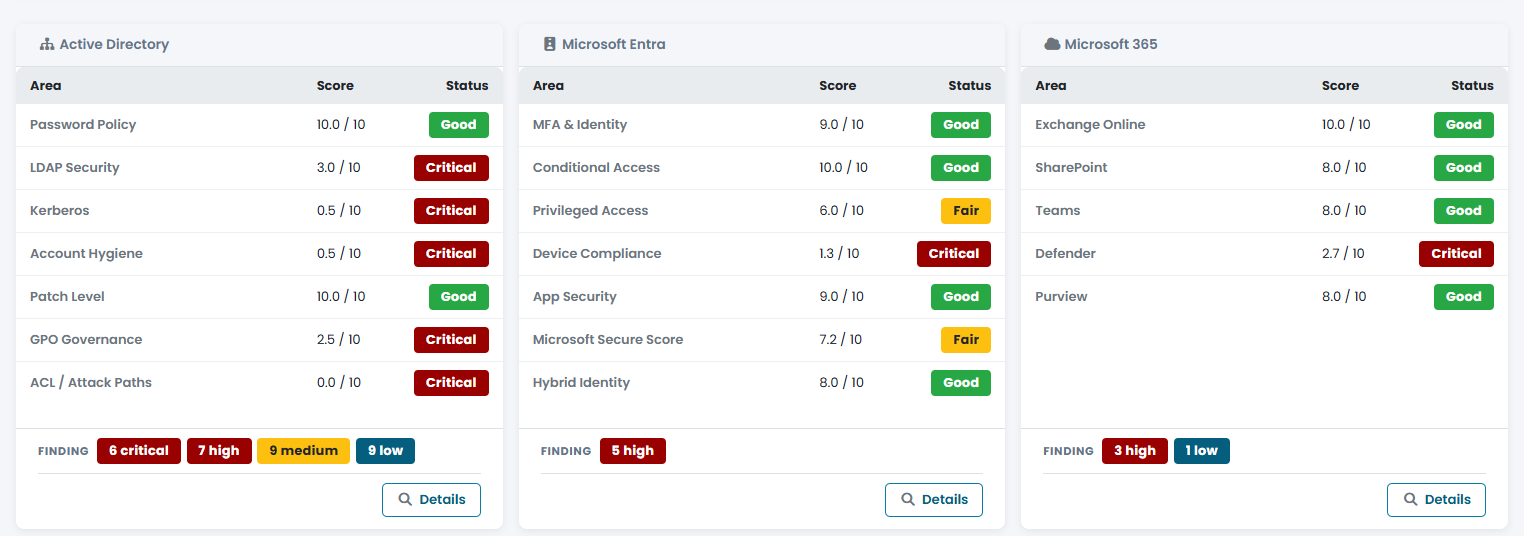
At the bottom of the page each technology is split into its areas — for example Password Policy, Kerberos or Account Hygiene for Active Directory, Conditional Access or Privileged Access for Microsoft Entra, Exchange Online or Teams for Microsoft 365. Each area has a score from 0 to 10 and a status (Good, Fair, Attention, Critical), so you can see which part of the technology lowers its score.