
Network Probe
The network probe scans the networks of your organization and sends the results to the Network Assessment: the devices it finds, the services they expose and the vulnerabilities that affect them. It runs as a Windows service on a machine of your network.
You configure everything from the portal — which networks to scan, how, how often — and the probe receives the configuration by itself: you never need to edit files on the machine.
One or More Probes
A probe can only scan the networks it can reach. If your organization has several sites, or networks separated by firewalls, install one probe per site: each one scans its own networks, and the devices it finds are assigned to its site automatically.
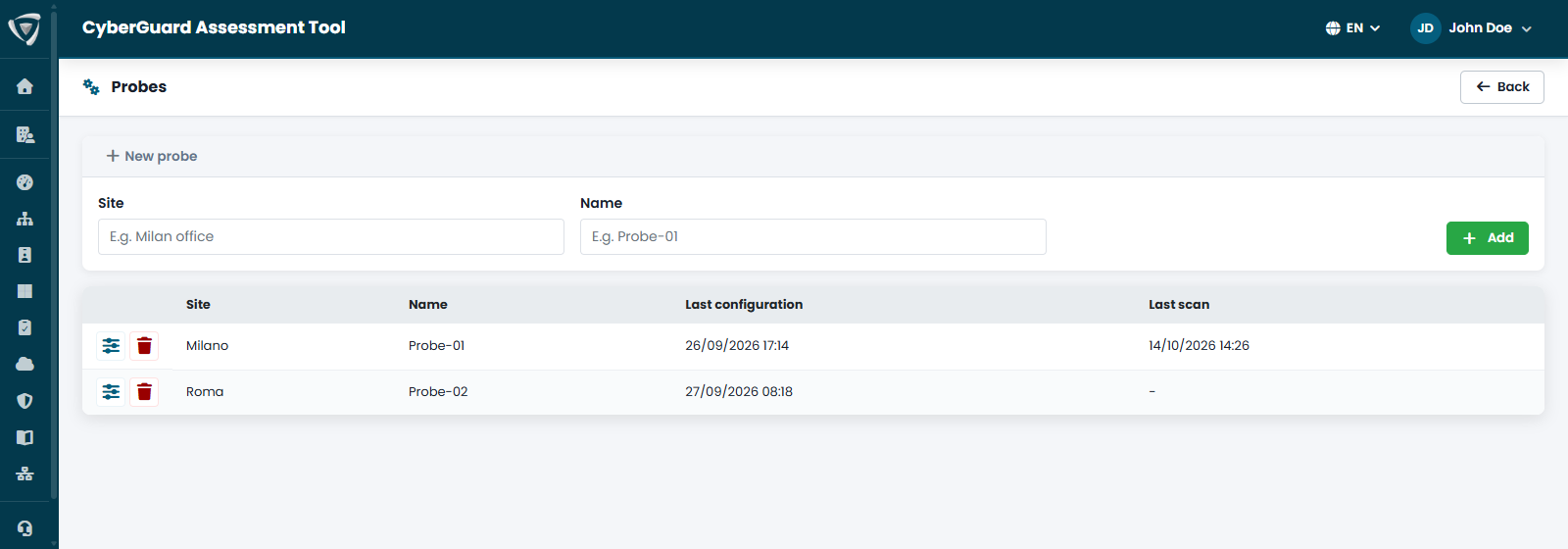
In Network Assessment → Configure Probe you see all your probes, with their site, when their configuration last changed and when they last scanned. To add one, enter its Site and Name and click Add; then open it to configure it.
Configuring a Probe

The Configure Probe card sets the name of the probe, its site (assigned to the devices it discovers, if they don't already have one) and how often it scans, in hours.
Scan Methods

Scan Configuration lists the techniques the probe can use. Turn on only what you need: a technique that is turned off generates no traffic at all on your network.
| Method | What it does |
|---|---|
| ICMP Ping | Finds the devices that answer on the network. |
| TCP Port Scan | Finds the open ports of each device. |
| SNMP | Reads vendor, model, firmware and other details from devices that support it — the basis of the CVE analysis. |
| Banner grabbing | Reads the banner of the services to identify product and version. |
| ARP | Finds devices and their MAC addresses on the local network. |
| NetBIOS, SSDP, mDNS | Discover names and services announced by Windows machines, printers, media and IoT devices. |
| Reverse DNS | Resolves the name of each device from its IP address. |
| OS guess (TTL) | Estimates the operating system from the network responses. |
| Web services | Analyzes the web interfaces and the technologies they use. |
| TLS certificates and protocols | Checks the TLS protocols accepted and the certificates, with their expiry. |
SNMP and banner grabbing produce results only if ICMP Ping or TCP Port Scan is on as well.
SNMP Credentials
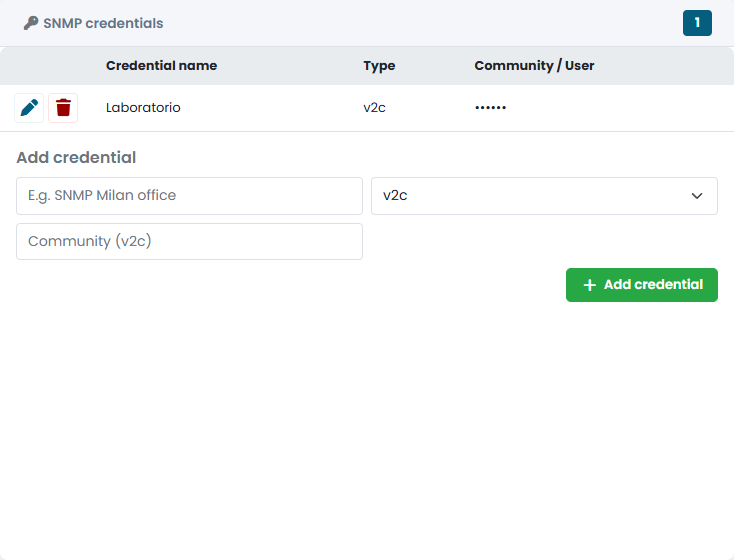
To read the details of switches, firewalls, printers and other devices through SNMP, the probe needs their credentials. In SNMP credentials add one or more sets:
- v2c — a name and the community string;
- v3 — a name, the user and the authentication and encryption settings.
The configuration, credentials included, reaches the probe only in encrypted form. Use read-only credentials.
Networks to Scan
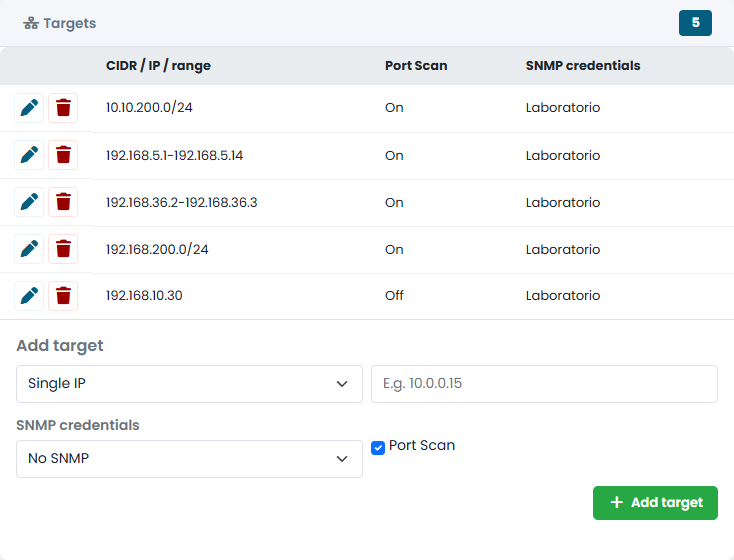
Targets lists what the probe scans. For each target choose:
- the type: a single IP address, a network in CIDR notation (for example
192.168.10.0/24) or a range (for example192.168.5.1-192.168.5.14); - the SNMP credentials to use on that target, or none;
- whether to run the port scan on it.
Start with the networks of your servers and network devices, then extend the scan to the other networks once you have seen the results.
Applying the Changes
Click Save in each card. Installed probes receive the changes automatically, encrypted, at their next cycle or when their Windows service restarts.
Installing the Probe
- In the configuration of the probe, click Generate installation code and copy the code.
- In Network Assessment, click Download Agent and extract
CyberGuard-NetworkProbe.exeon the machine. - From a prompt opened with "Run as administrator", run:
.\CyberGuard-NetworkProbe.exe --install <installation code>
The probe registers with the portal using the code, protects its configuration on the machine, and installs and starts the Windows service. No scripts and no other files are needed. The machine needs to reach the networks to scan and to have Internet access to send the results.
To remove the probe, run CyberGuard-NetworkProbe.exe --uninstall from an administrator prompt.
Automatic Updates
From version 1.7.1 the probe keeps itself up to date: nothing has to be done on the machine.
- Updates are mandatory. They cannot be turned off on the machine: the update ring decides when a probe receives a new version, not whether.
- About once an hour, always between two scans, the probe asks the CyberGuard service it already sends its results to whether a new version is available. It downloads it from the same address: there is nothing new to open on the firewall.
- Before installing it, the probe checks that the new version is digitally signed by Inside Technologies Srl and refuses anything else, then test-starts it. The Windows service restarts with the new version: during an update the System event log shows event 7031 for the probe service, which is expected.
- If the new version does not work, the probe goes back to the previous one by itself and does not try that version again.
Probes older than 1.7.1 do not update themselves: update them once by hand, generating a new installation code and running the same --install command again. From then on they stay up to date.
From version 1.7.2 --install refuses a code that would replace another probe: a probe with a different identity already on this machine, or a probe that is registered on another machine. The code stays valid and nothing changes on the machine. If the replacement is intended, for example when you move a probe to a new machine, run the same command again with --replace.
Update Rings
Each probe belongs to an update ring, which decides how long after its release a new version reaches it, and at what time of day it is installed:
| Ring | Receives a new version | Installs it |
|---|---|---|
pilot |
as soon as it is released | at any time |
standard (default) |
7 days after its release | between 22:00 and 06:00, local time of the machine |
delayed |
21 days after its release | between 22:00 and 06:00, local time of the machine |
- The night window exists because the service restarts and a scan in progress is postponed. A machine that is never on at night (for example a workstation switched off in the evening) installs the version at the first check after 3 days.
- Urgent versions — security fixes, or fixes for a problem that stops the probes — reach every ring at the first check, ignoring both the delay and the night window.
- A ring always receives the latest version: if a newer one is released while a
delayedprobe is still waiting, it receives the newer one when its delay ends.
The ring is chosen at installation; without the option it is standard:
.\CyberGuard-NetworkProbe.exe --install <installation code> --updatering delayed
To change it later, without reinstalling, run from an administrator prompt:
C:\CyberGuard\AT-NetworkProbe\CyberGuard-NetworkProbe.exe --updatering pilot
The new ring applies from the next check. Reinstalling the probe without --updatering keeps the ring already chosen.
Checking the Probe
The Probe info card at the top of the Network Assessment page shows each probe with its status, machine, operating system, IP address, last synchronization, version and update ring.