
Microsoft Entra App
The Microsoft Entra and Microsoft 365 assessments read your tenant through an application registered in your own Microsoft Entra tenant: the Inside Technologies CyberGuard Assessment app. The assessments use it to read the configuration of your tenant: they do not change your security settings.
You register the app once, with a script provided by the portal, and then enter its details in Company Profile → Edit → Entra / AD.
Before You Start
- An account with the Global Administrator or Application Administrator role in your Microsoft Entra tenant.
- A Windows PC with PowerShell, run as administrator. No additional modules are required.
Step 1 — Download and Run the Registration Script
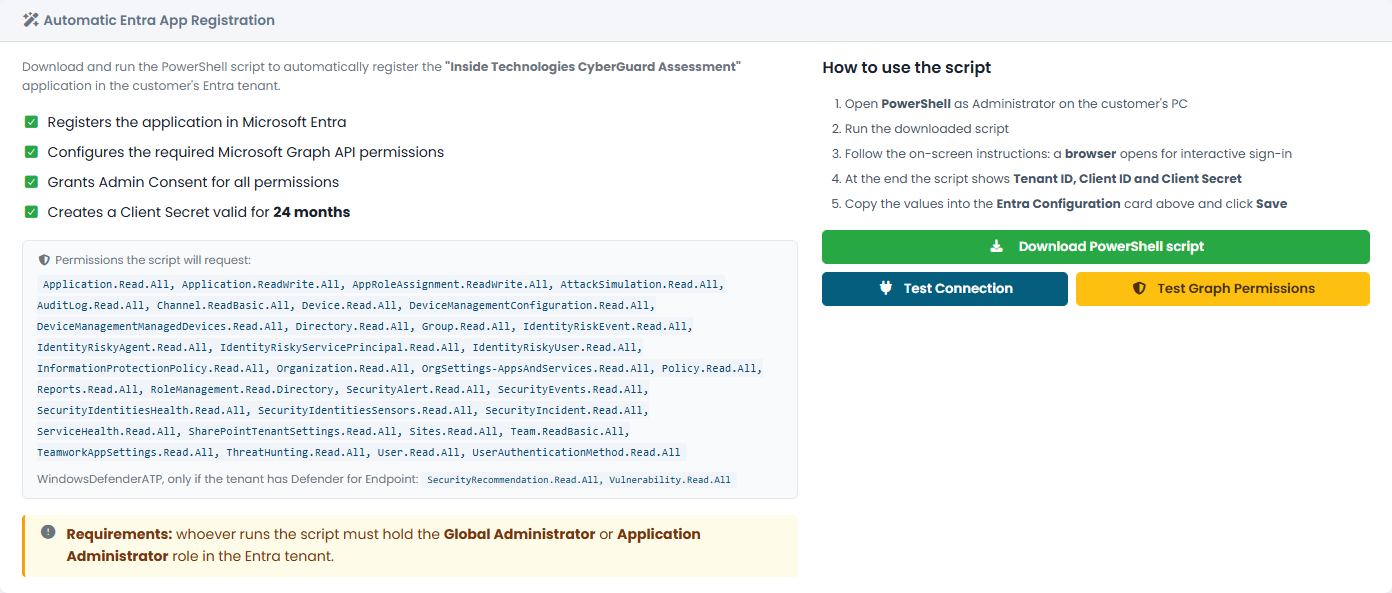
- In Company Profile, click Edit and open the Entra / AD tab.
- In the Automatic Entra App Registration card, click Download PowerShell script. The card lists every permission the script will request.
- Open PowerShell as administrator and run the downloaded script.
- Follow the on-screen instructions: a browser window opens and you sign in with your administrator account.
The script registers the application, assigns the Microsoft Graph permissions, grants admin consent and creates a client secret valid for 24 months. At the end it shows the Tenant ID, the Client ID and the Client Secret.
The script also checks whether your Microsoft 365 usage reports conceal site names. If they do, it warns you and links to what this means for the assessment. It only reads the setting and never changes it.
The client secret is shown only once and is not written to disk. Copy it before closing the script. If you lose it, run the script again: it adds a new secret to the existing app.
Step 2 — Enter the App Details in the Portal
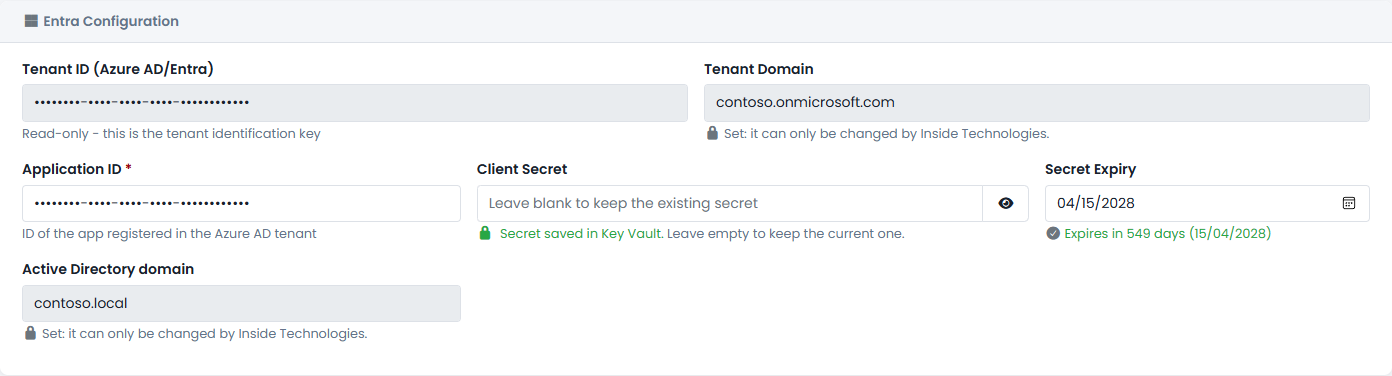
- In the Entra Configuration card, enter the Application ID (the Client ID) and the Client Secret, then click Save. The tenant ID and domain are already filled in.
- The card shows when the secret expires. Plan its renewal before that date by running the registration script again.
Step 3 — Check the Connection
In the Automatic Entra App Registration card:
- Test Connection verifies that the portal can sign in with the app.
- Test Graph Permissions tries every permission against your tenant and lists the ones that are missing. From the same page you can download a script that adds the missing permissions; after an administrator grants consent, run the assessment again.
Some sections of the assessments also depend on the licenses of your tenant (for example Microsoft Entra ID P2 for Privileged Identity Management and risk detections). When a license is missing, the assessment says so instead of showing an empty section.
Other Settings in the Entra / AD Tab
| Card | What it is for |
|---|---|
| Intune and Defender XDR monitoring | Turn off the services you don't use: their checks are skipped and their tabs hidden, so they don't affect reports and score. |
| Emergency access accounts | List your break-glass accounts (one UPN per line): the Microsoft Entra assessment checks those accounts instead of trying to recognize them. |
| SharePoint sharing links analysis | Enable the scan of the sharing links created on SharePoint and Teams sites, and set how many sites to analyze. |
| Dataverse Environments | Optional, only for the governance of Copilot Studio agents in the Microsoft 365 assessment. |