
Microsoft Entra
The Microsoft Entra assessment analyzes your cloud identity tenant: users and groups, applications and their permissions, privileged roles, Conditional Access, and the signs that someone may already be abusing your identities. It needs no agent: the portal reads your tenant through the Microsoft Entra app you registered during onboarding.
Running the Assessment
From Assessment → Microsoft Entra, click Run Assessment. The collection continues even if you close the page, and the list updates by itself when it is done. You can also run it automatically every day, every few days or every week: see Scheduling.
Some sections depend on the licenses of your tenant — for example Privileged Identity Management and risk detections require Microsoft Entra ID P2. When a license is missing, the section says so instead of appearing empty.
What It Covers
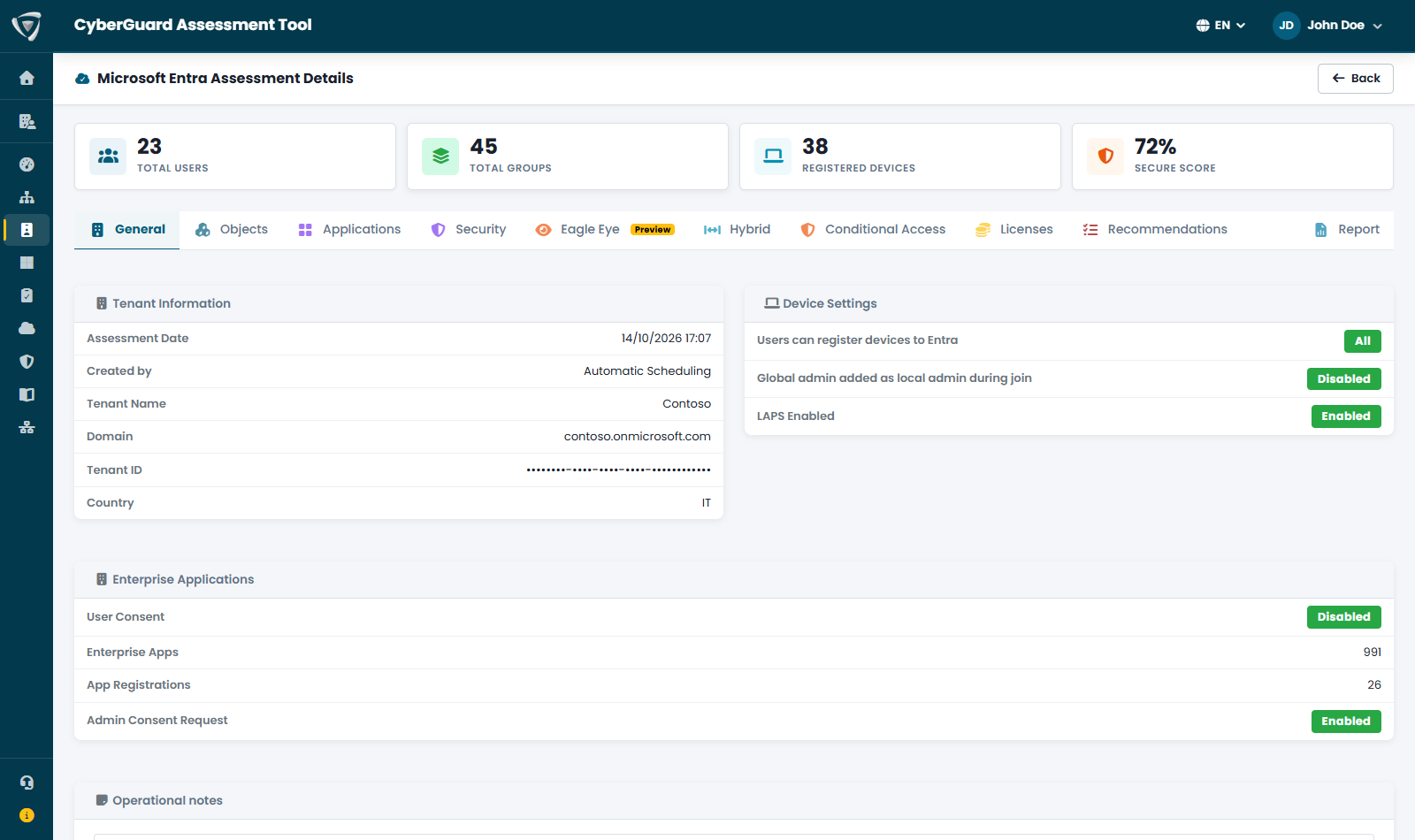
The counters at the top show users, groups, registered devices and your Microsoft Secure Score. The detail is organized in tabs:
| Tab | What you find |
|---|---|
| General | Tenant information, device settings, user consent and admin consent settings for enterprise applications. |
| Objects | Users, inactive users and guests (more than 90 days without sign-in, with the licenses they still consume), groups and devices. |
| Applications | Enterprise applications, app registrations, credentials (secrets and certificates) that are expiring or expired, and the consents granted to third-party applications, with the risky ones highlighted. |
| Security | Identity and Microsoft Secure Score with the Microsoft Entra plan of the tenant and the trend of the last 90 days, security defaults, password expiration, MFA registration by user, the administrative roles in use in your tenant with their members, and Privileged Identity Management. |
| Eagle Eye | Signs of attack on your identities. See Eagle Eye. |
| Hybrid | Synchronization with your on-premises Active Directory: method, last sync, federation, the Seamless SSO key and the administrator accounts synchronized from on-premises, which should be cloud-only. |
| Conditional Access | All your policies and a coverage check of the protections that matter (see below), including your emergency access accounts. |
| Licenses | The licenses of the tenant: enabled, consumed, available, and how many are assigned to inactive users. |
| Recommendations | The Identity Secure Score recommendations, filterable by priority and category. |
| Report | The PDF report and the CSV exports. |
Conditional Access Coverage
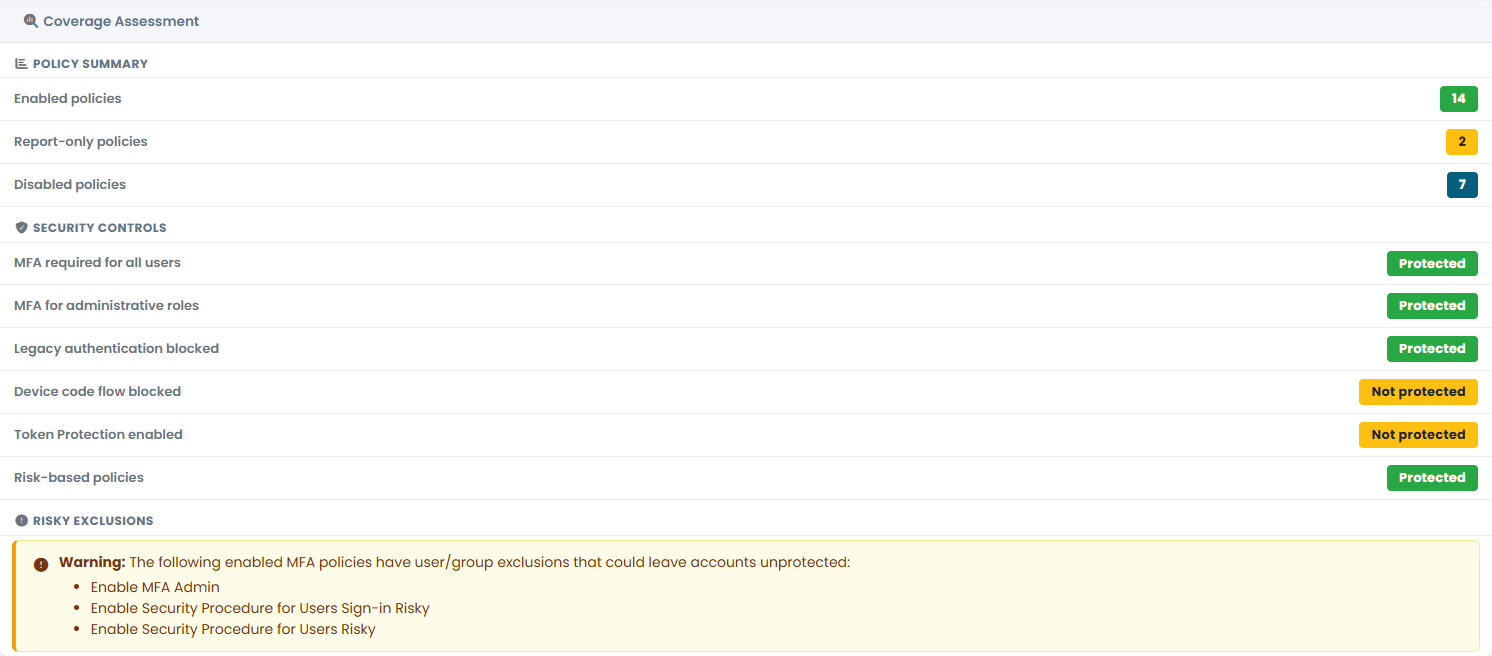
Instead of leaving you to read every policy, the Conditional Access tab checks whether the protections that matter are actually in place: MFA for all users and for administrators, blocking of legacy authentication and of the device code flow, Token Protection, risk-based policies. It also warns you when an enabled MFA policy excludes users or groups that could be left unprotected.
Emergency access accounts (break-glass) are normally excluded from Conditional Access on purpose. List them in Company Profile → Edit → Entra / AD so that the assessment checks those accounts instead of trying to recognize them, and warns you if one of them is no longer a Global Administrator.
Findings and Report
Problems found become findings that weigh on the Microsoft Entra score — for example administrators without MFA, legacy authentication not blocked, privileged roles assigned permanently instead of through PIM, or applications with privileged Graph permissions. You find them in the Security Score; the paths an attacker could take to Global Administrator are in the attack paths. The Report tab produces the PDF report, in English or Italian.