
Assessment
The Assessment section of the menu groups everything CyberGuard knows about the security of your environment: one area per technology, plus the Security Score that puts them together.
| Area | What it assesses | How it runs |
|---|---|---|
| Security Score | The overall picture: one score per technology, all open findings, attack paths and what changed. | Built automatically from the latest assessments. |
| Active Directory | Your on-premises domains: domain controllers, accounts and permissions, policies, DNS, certificate services. | The Active Directory agent, on demand or on a schedule. |
| Microsoft Entra | Identities, Conditional Access, roles, applications and signs of attack in your tenant. | Directly from the portal, on demand or on a schedule. |
| Microsoft 365 | Exchange Online, SharePoint, Teams, Intune and Microsoft Defender. | The Microsoft 365 agent, on demand or on a schedule. |
| Compliance Assessments | Your readiness for security regulations. | Guided questionnaires that you fill in. |
The Assessment Pages
Active Directory, Microsoft Entra and Microsoft 365 work the same way.
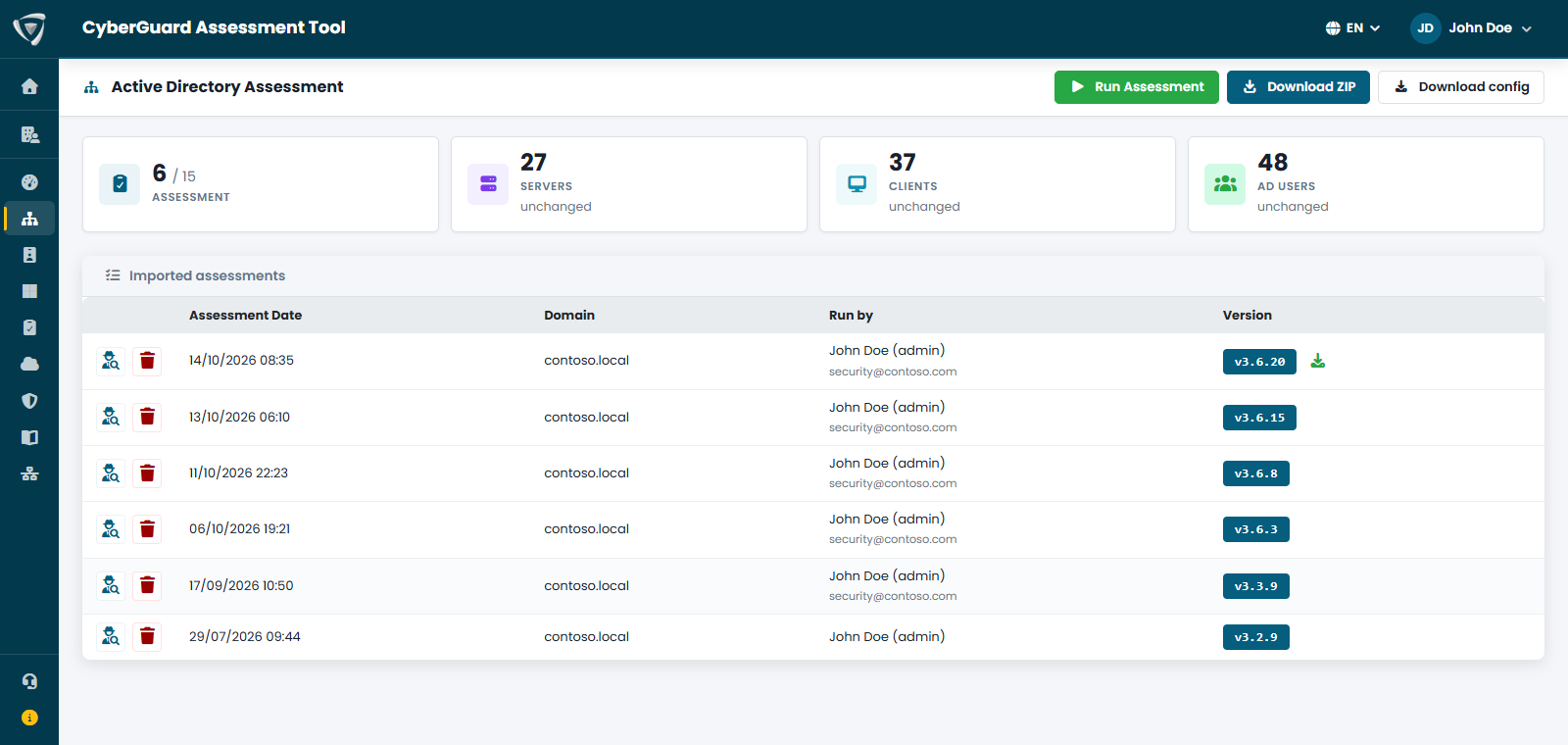
- Header actions — start a new assessment and download what the agent needs (for Active Directory and Microsoft 365).
- Counters — the key numbers of the latest assessment, with the change from the previous one.
- List of assessments — every assessment collected, with date, scope, who ran it and the agent version. Click the detail icon to open an assessment.
Inside an Assessment
Each assessment opens on a detail page organized in tabs, one per area of the technology. Each tab shows the collected data and highlights the problems found. From the detail page you can also:
- Download the report — a PDF report, in English or Italian, with the score, the findings and an action plan, ready to share with management.
- Export to CSV — the lists collected (users, devices, groups and so on) for your own analysis.
- Add notes — a free note on the assessment, visible to your team.
Findings and Score
Every problem found becomes a finding, with a severity (Critical, Warning, Best Practice), a description and a recommendation. Findings weigh on the score of the technology, from 0 to 100. All findings of all technologies come together in the Security Score, where you can filter them, document the work done and accept a risk.
History
The list keeps the assessments of the past months, so you can follow how your environment changes and compare two assessments in What Changed. The oldest assessments are removed automatically.
To keep an assessment beyond that — for example as the starting point to measure your improvements — an administrator can lock it from its detail page, next to the notes. A locked assessment is kept for 12 months and shows a lock icon in the list. You can lock up to 3 assessments per technology.