
Users & Permissions
Everyone in your organization signs in to CyberGuard with their Microsoft work account. Administrators decide who can access the portal and what each person can do, in Company Profile → Edit → Users.

The list shows every user who has signed in at least once, with email, role, status and last access. Click a user to open their settings.
Approving New Users
The first time a person of your organization signs in, the account is created but not active yet: an administrator has to approve it. Until then, the person sees a page saying that access is pending. Open the user, turn on Account Status and assign the permissions.
Roles and Permissions
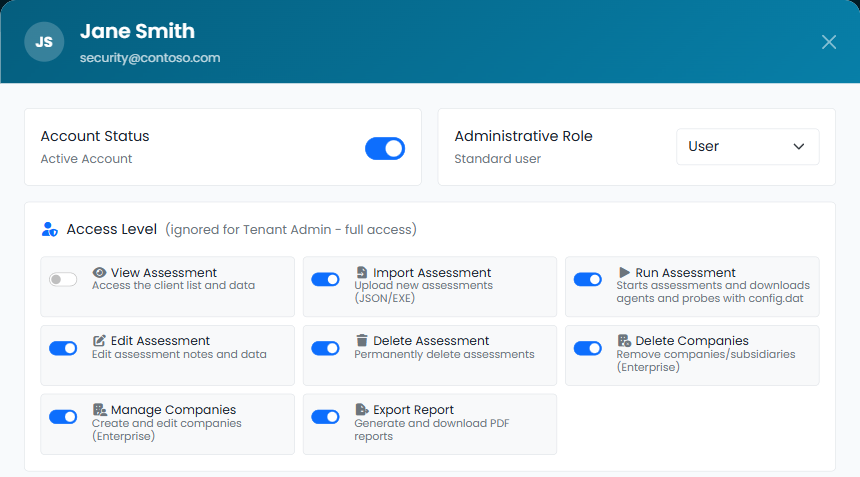
Each user has an Administrative Role:
- Tenant Admin — full access to the portal and its configuration: users, SMTP, notifications, scheduling, the Microsoft Entra app, accepting risks and locking assessments. The permissions below are ignored for administrators.
- User — access limited to the permissions you choose.
For users, the Access Level defines what they can do with assessments:
| Permission | What it allows |
|---|---|
| View Assessment | See the assessments and their data. |
| Import Assessment | Upload new assessments. |
| Run Assessment | Start assessments (Microsoft Entra, Microsoft 365, Active Directory, SharePoint sharing link scans) and download agents and probes with their configuration file or installation code. Without it, a user can see the assessments run by others or by the schedule, but the buttons to start them do not appear. |
| Edit Assessment | Edit the notes and data of an assessment. |
| Delete Assessment | Permanently delete assessments. |
| Export Report | Generate and download the PDF reports. |
Administrators always have every permission. New users start without Run Assessment: grant it to the people who run the assessments.
Below the access level, Permissions let you choose which areas of the portal a user can see — for example Active Directory, Microsoft Entra, Microsoft 365, Security Score, Workspace — and, inside each area, which tabs. Use Toggle all to switch a whole group at once. An area the user cannot see does not appear in their menu.
Disabling a User
To remove access — for example when someone leaves the organization — open the user and turn off Account Status. Disabling is better than deleting: the history of what the user did (activities in the Workspace, accepted risks, audit log) stays intact.
Every change to users and permissions is recorded in the Audit Log tab.