
KQL Queries
The KQL queries tab of Microsoft Security View lets you run Advanced Hunting queries on the data of Microsoft Defender directly from the CyberGuard portal, without switching to the Defender portal. Queries run in your tenant in read-only mode: they can read data, never change it.
The tab has three sub-tabs: Editor, CyberGuard queries and Saved queries.
Editor
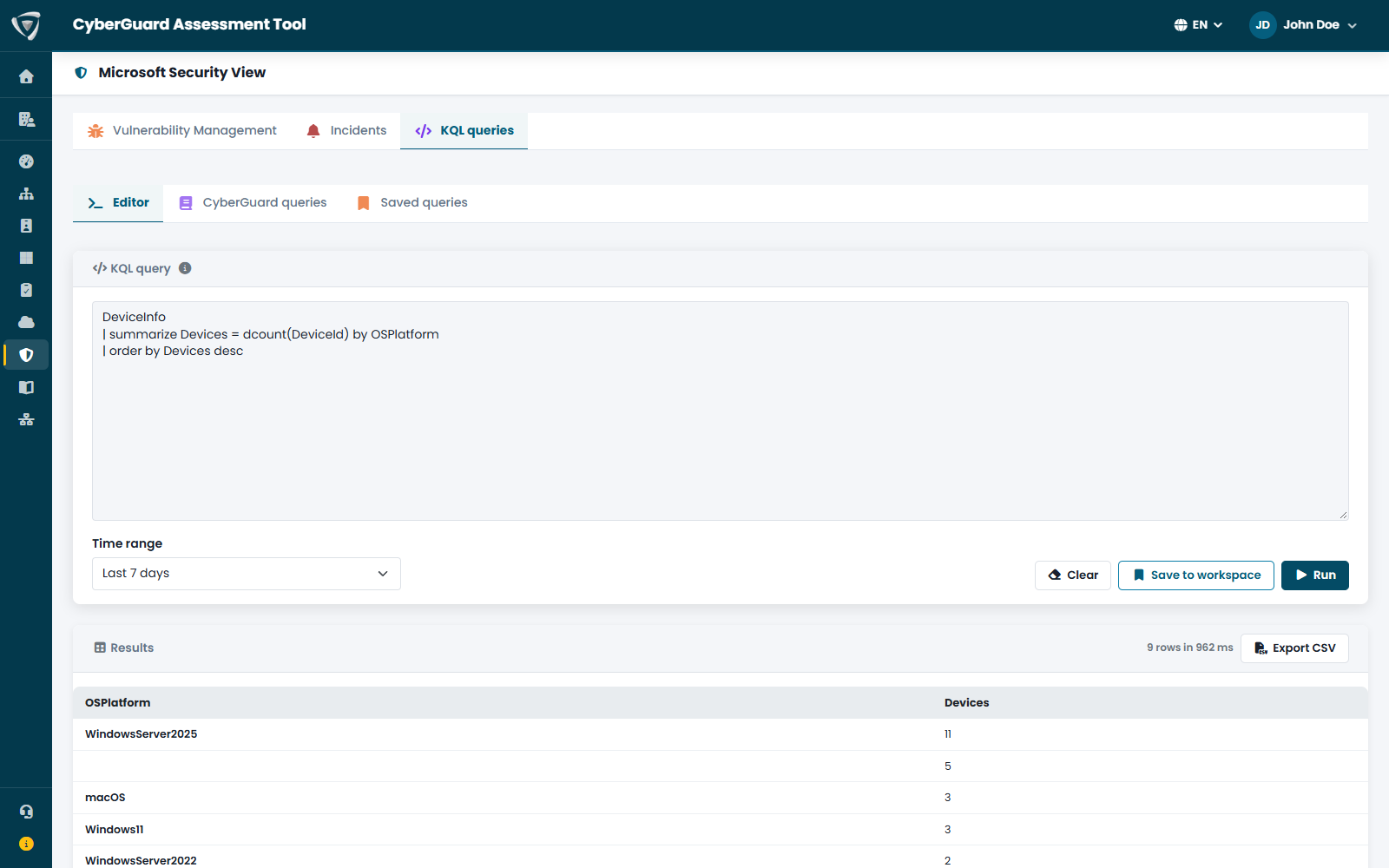
- Write your query in KQL (Kusto Query Language), the same language used by Advanced Hunting in Microsoft Defender — for example
DeviceInfo | summarize Devices = dcount(DeviceId) by OSPlatform. - Choose the Time range: last hour, 24 hours, 7 days or 30 days.
- Click Run. The results appear below, paginated, with the number of rows and the execution time.
- Export CSV downloads the results; Save to workspace keeps the query in your KQL repository so that you and your team can run it again.
You can query all the Advanced Hunting tables of Microsoft Defender XDR (devices, identities, email, cloud apps, alerts). The tables of Microsoft Sentinel are available too, when your Sentinel workspace is connected to the Microsoft Defender portal.
CyberGuard Queries
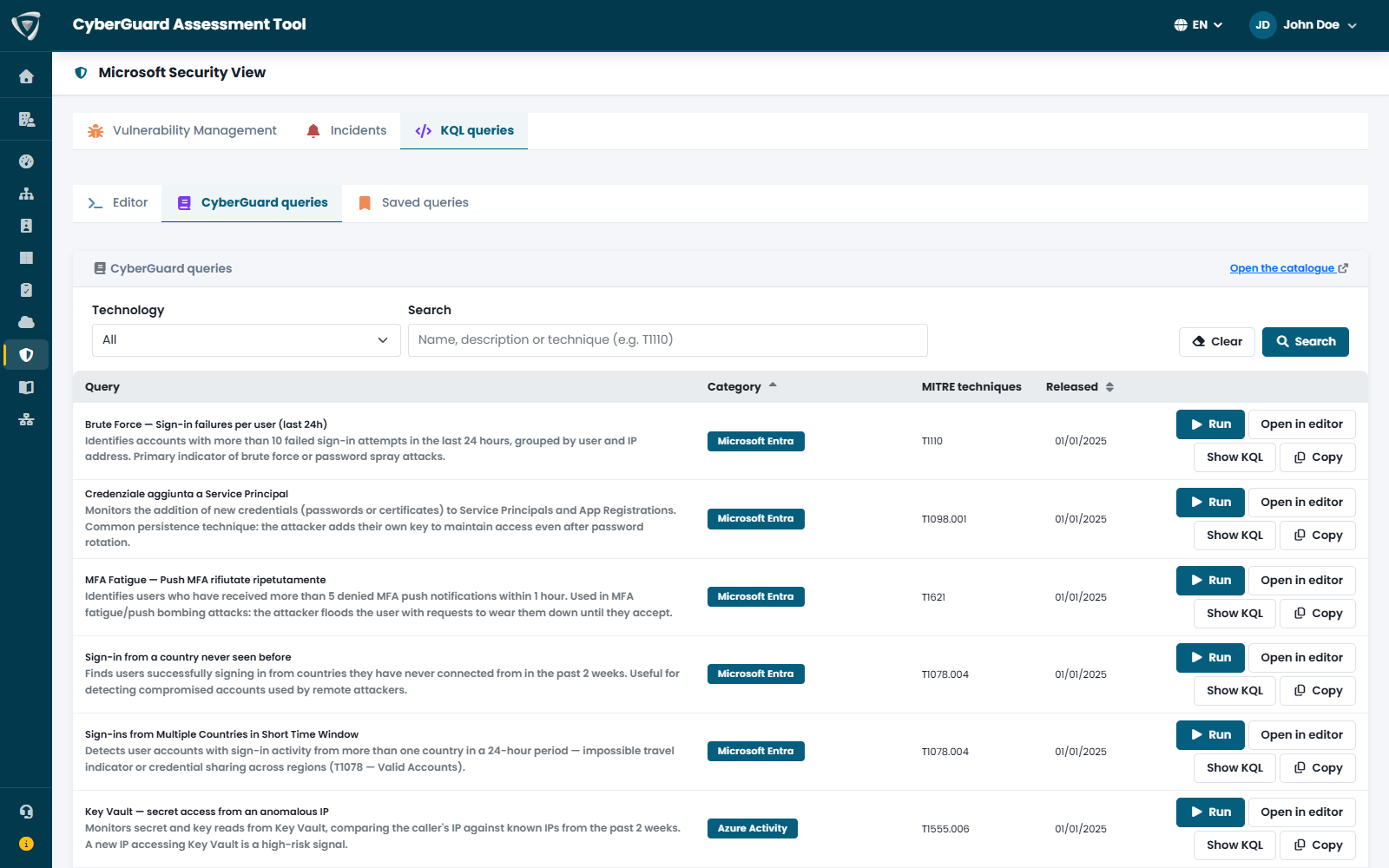
CyberGuard queries is a catalogue of hunting queries curated by Inside Technologies. Each query has a description, a category, the MITRE ATT&CK techniques it investigates and its release date. Filter by technology — Microsoft Entra, Active Directory, Exchange Online, Defender for Endpoint, Defender for Identity, firewalls and many others — or search by text, sort by category or date, and with one click run a query or open it in the editor to adapt it.
The same catalogue feeds the queries to investigate shown in the details of a MITRE technique in the Incidents tab, and the coverage indicator in the threat intelligence of the Dashboard. Open the catalogue opens the public repository of the queries on GitHub (CyberGuardAT-KQL).
Saved Queries
Saved queries lists the queries saved by your team, with name, category and author. Open one to run it again or to edit it. The same queries are available in the Workspace.