
Email Notifications
CyberGuard can send email notifications about what happens to your automatic assessments: a scheduled assessment that completed or failed, a probe that stopped responding, and a weekly summary of the work recorded in the Workspace. Emails are sent through your own mail server, so they come from an address of your organization.
Setting up notifications takes two steps, both in Company Profile → Edit:
- Configure and test the mail server in the SMTP tab.
- Turn on the notifications you want, and choose who receives them, in the Notifications tab.
Step 1 — Configure the Mail Server (SMTP)
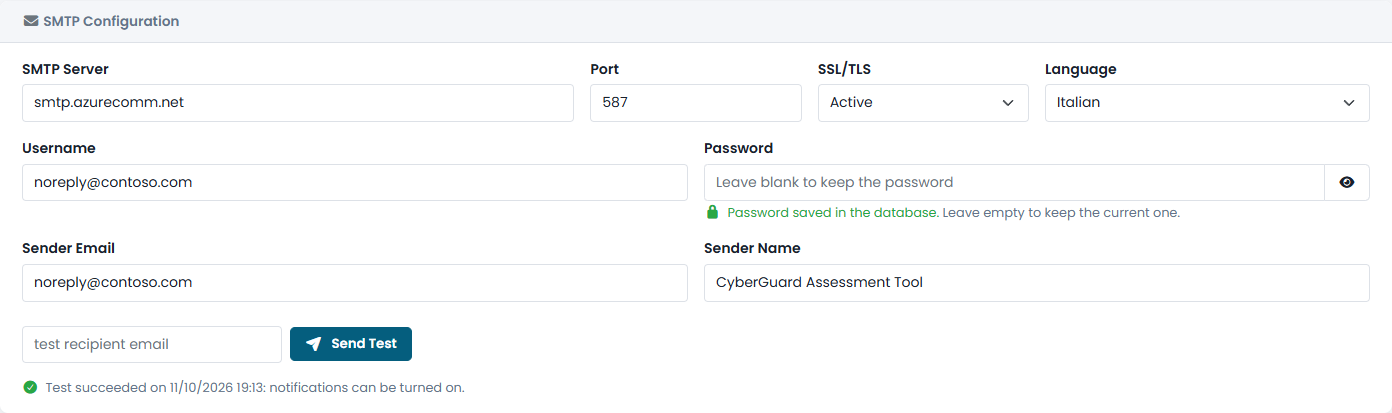
| Field | What to enter |
|---|---|
| SMTP Server and Port | The address and port of your mail server (for example port 587). |
| SSL/TLS | Whether the connection is encrypted. Keep it active unless your server does not support it. |
| Language | The language of the notification emails (English or Italian). |
| Username and Password | The account used to send mail. The password is stored encrypted; leave the field empty to keep the saved one. |
| Sender Email and Sender Name | The address and name the emails appear to come from. |
Click Save, then enter an address in the test field and click Send Test. When the test email arrives, the tab shows the date of the successful test and notifications can be turned on.
Notifications work only with a tested mail server. If you change the server, port, encryption, account or sender, the test is reset: send a new test before notifications start again. If you remove the mail server configuration, all notifications are turned off.
Step 2 — Choose the Notifications
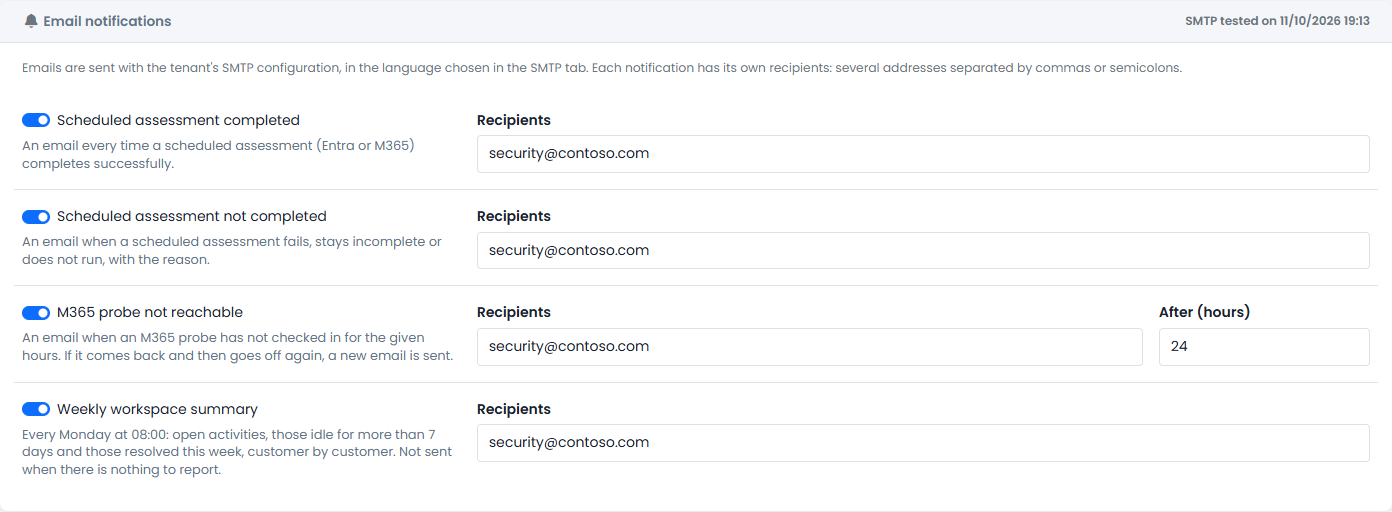
Each notification has its own switch and its own recipients. Enter one or more addresses separated by commas or semicolons; recipients are required only for the notifications that are turned on.
| Notification | When it is sent |
|---|---|
| Scheduled assessment completed | Every time a scheduled Microsoft Entra or Microsoft 365 assessment completes successfully. |
| Scheduled assessment not completed | When a scheduled assessment fails, remains incomplete or does not run, with the reason. |
| M365 probe not reachable | When a Microsoft 365 probe has not checked in for the number of hours you set (24 by default). One email per outage: if the probe comes back and later stops again, a new email is sent. |
| Weekly workspace summary | Every Monday at 08:00: open activities, activities idle for more than 7 days and activities resolved during the week. Not sent when there is nothing to report. See Workspace. |
Click Save to apply your choices. Every email sent, or failed, is recorded in the Audit Log tab.